
Converting a Screen Recording into Documentation with video2docs
📋 Overview
This tutorial shows you how to turn a screen recording of an application into a structured, screenshot-rich Markdown guide using video2docs. You will upload a video, describe your project, choose a documentation style and AI model, start processing, and then review, export, and rate the generated documentation.
The full workflow has five parts:
- Part 1: Starting a new project and uploading your video
- Part 2: Configuring documentation options
- Part 3: Starting processing and tracking progress
- Part 4: Reviewing the generated documentation
- Part 5: Rating the documentation
✅ Prerequisites
Before you begin, make sure you have:
- A video2docs account with available credits (the Your credits indicator appears at the top of the New project page)
- A screen recording of the application you want to document, in MP4, MOV, or AVI format
- A video that is no longer than 10 minutes and no larger than 250 MB
- A video that is ideally under 3 minutes for concise output
Note: The tips panel in the app recommends high-resolution recordings (720p or higher) so that UI text is readable in the generated screenshots.
Part 1: Starting a New Project
Opening the New Project Page
- Open the New project page in the video2docs web app. The page header reads New project, and the upload card shows two source buttons: Upload file and Record Screen. The Upload file button is selected by default.
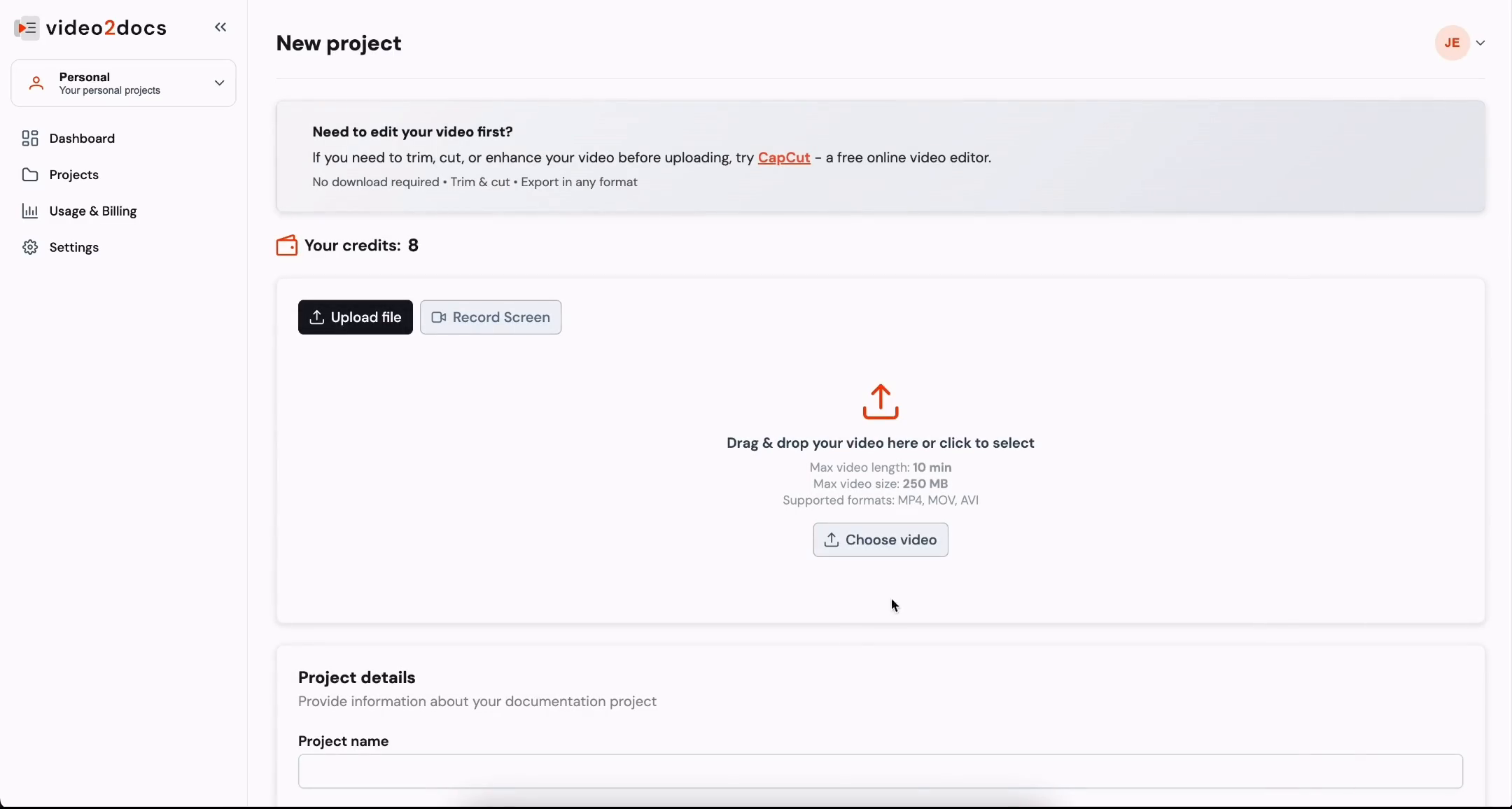
- Confirm that the Upload file button is the active option. The upload zone shows the text "Drag & drop your video here or click to select," along with the limits Max video length: 10 min, Max video size: 250 MB, and Supported formats: MP4, MOV, AVI.
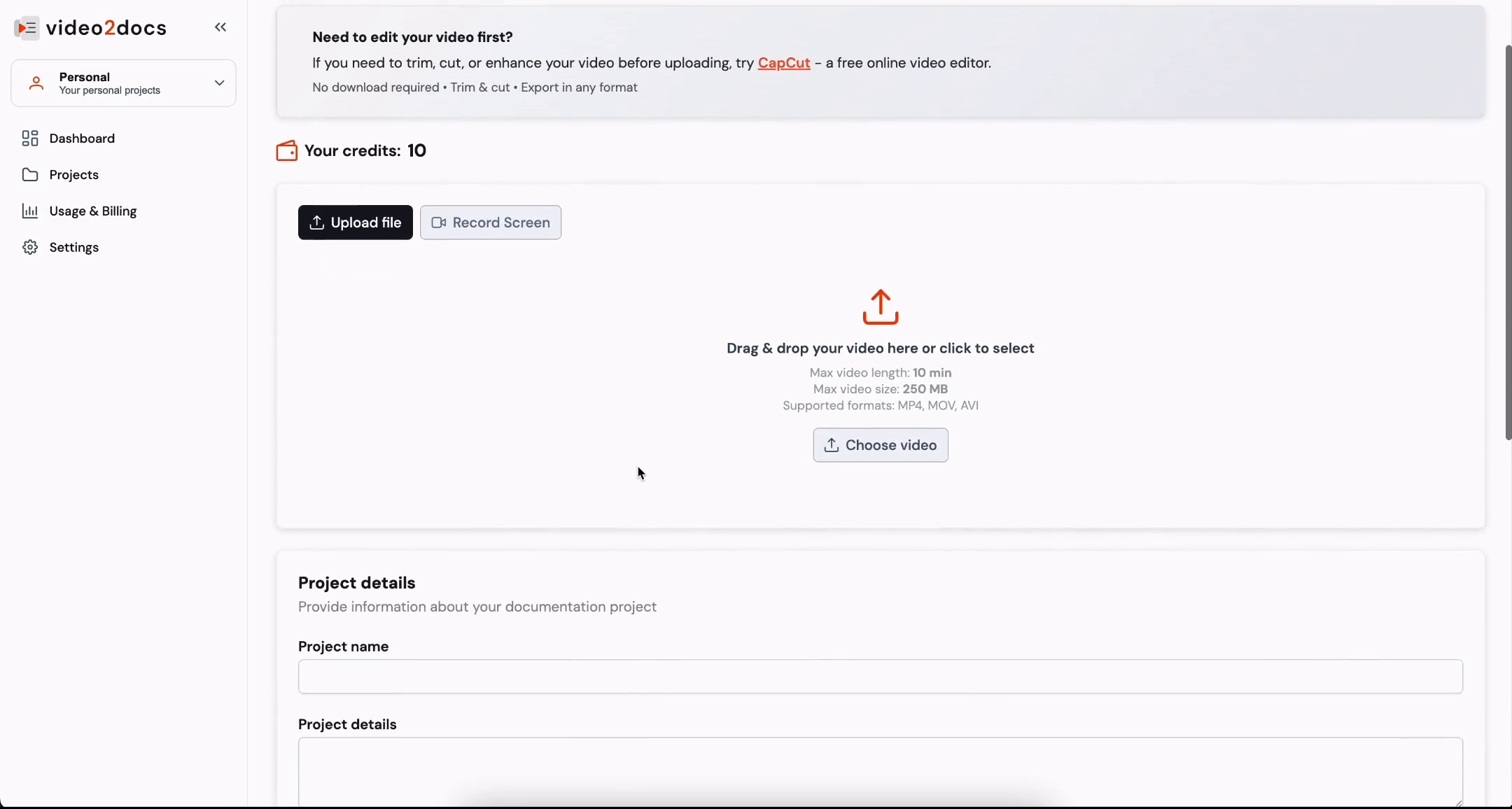
Scroll down the page to see the Project details section. This section contains the fields you will complete later. It has no values yet.
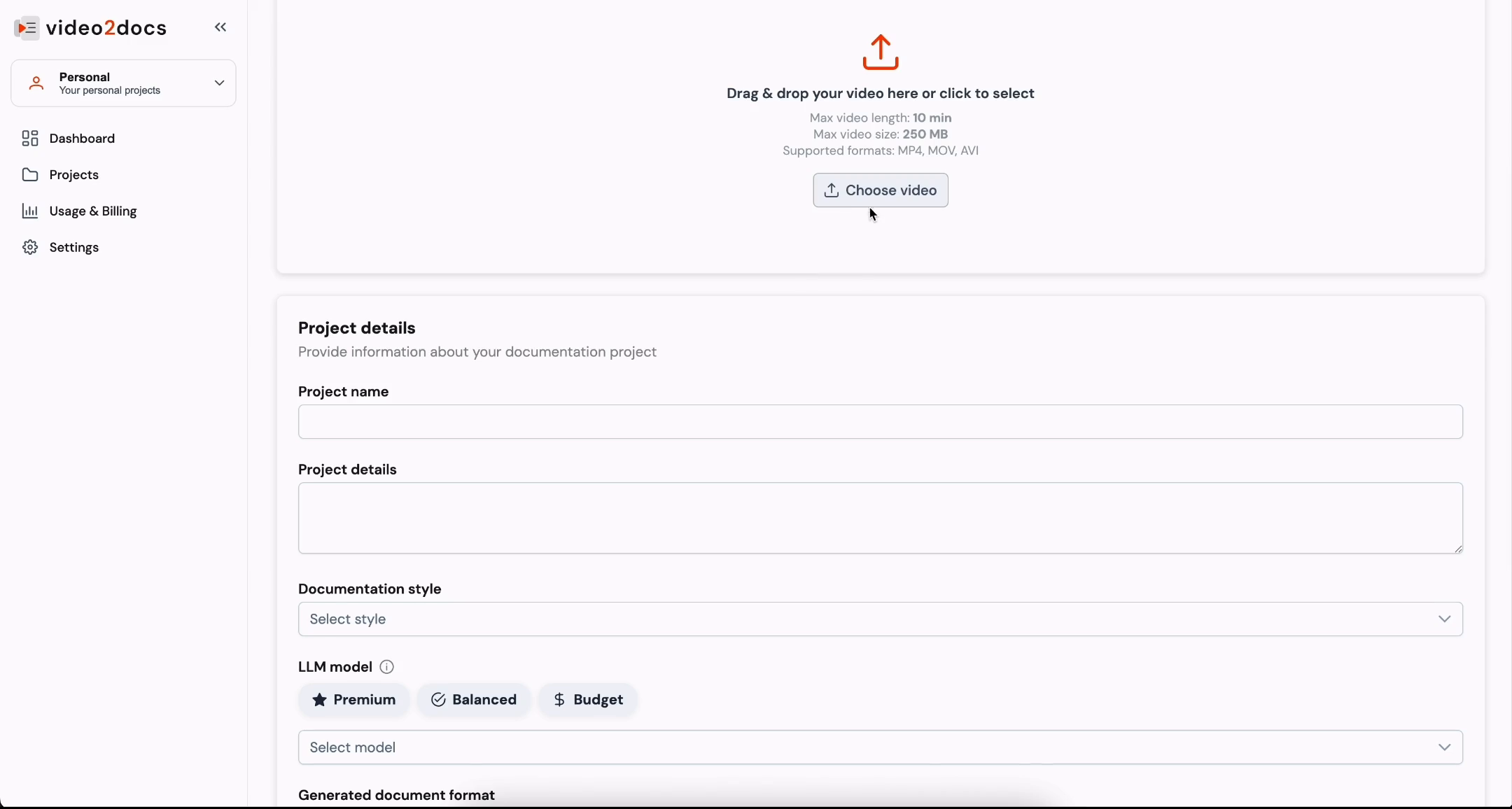
Continue scrolling to review the remaining fields in the form. The form includes:
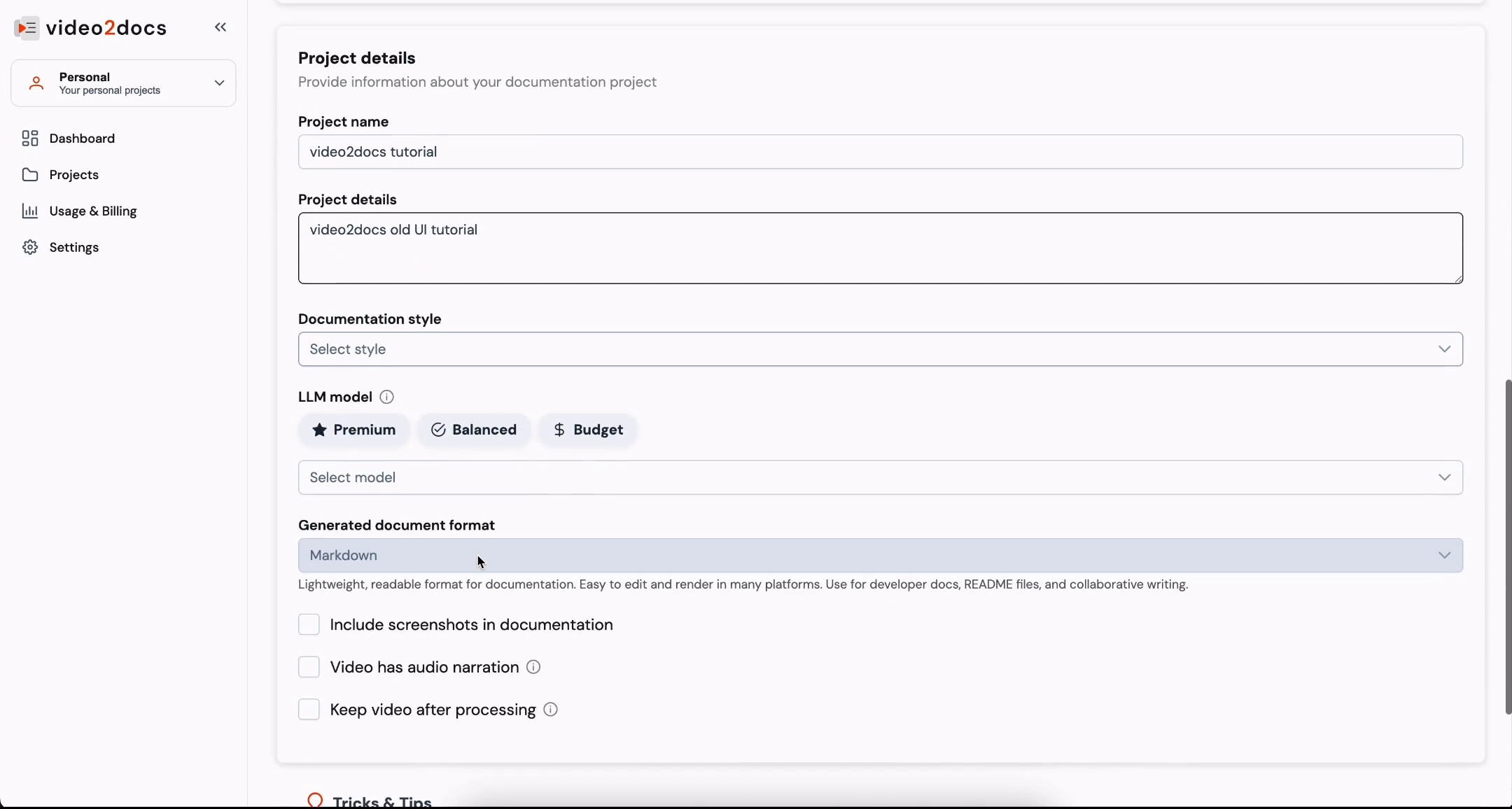
- Project name (single-line text field)
- Project details (multi-line text area)
- Documentation style (dropdown showing "Select style")
- LLM model (three tier buttons: Premium, Balanced, and Budget, plus a Select model dropdown)
- Generated document format (set to Markdown)
Move your cursor over the Choose video button in the upload zone. This is the button you will click to select your video file.
Uploading Your Video
- Click the Choose video button. A file-open dialog appears over the page. The dialog's sidebar shows locations such as Desktop, Documents, and Downloads, and the main area shows the folder structure.
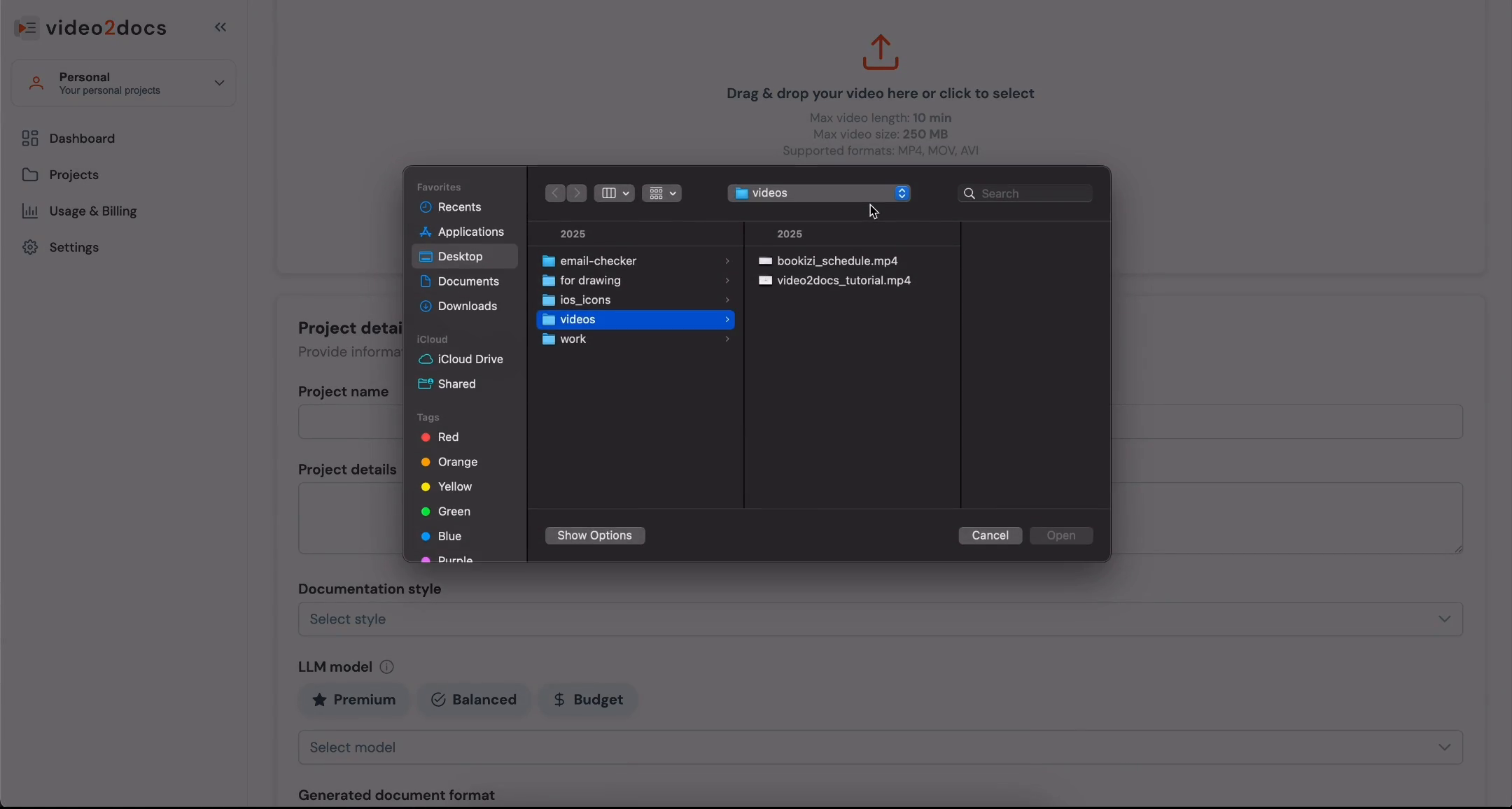
In the file dialog, navigate to the folder that contains your recording. In the example, the folder is videos. Click the file video2docs_tutorial.mp4 to select it. The Open button becomes enabled once a file is selected.
Click Open. The dialog closes and the video is attached to the project.
Look at the upload area. The file is now shown in a preview panel with a video player. The file name video2docs_tutorial.mp4 and the file size 27.4 MB are displayed. The player shows 0:00 / 1:16, which is the video's duration.
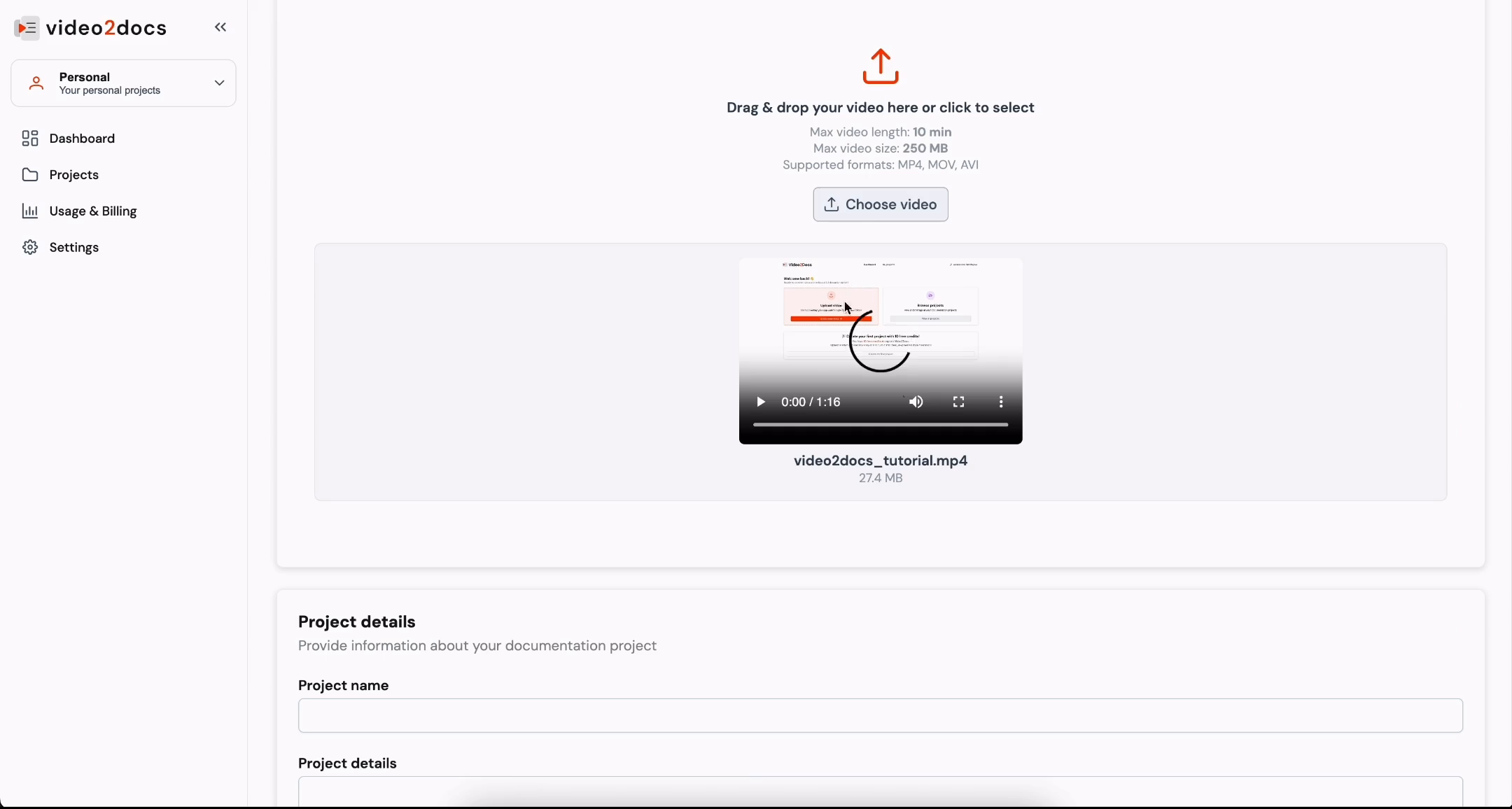
- Review the preview to confirm that the correct video was uploaded. The preview player's controls include play, volume, fullscreen, and a three-dot more menu.
💡 Tip: You can also drag and drop a video file directly into the upload zone instead of clicking Choose video.
Completing Project Details
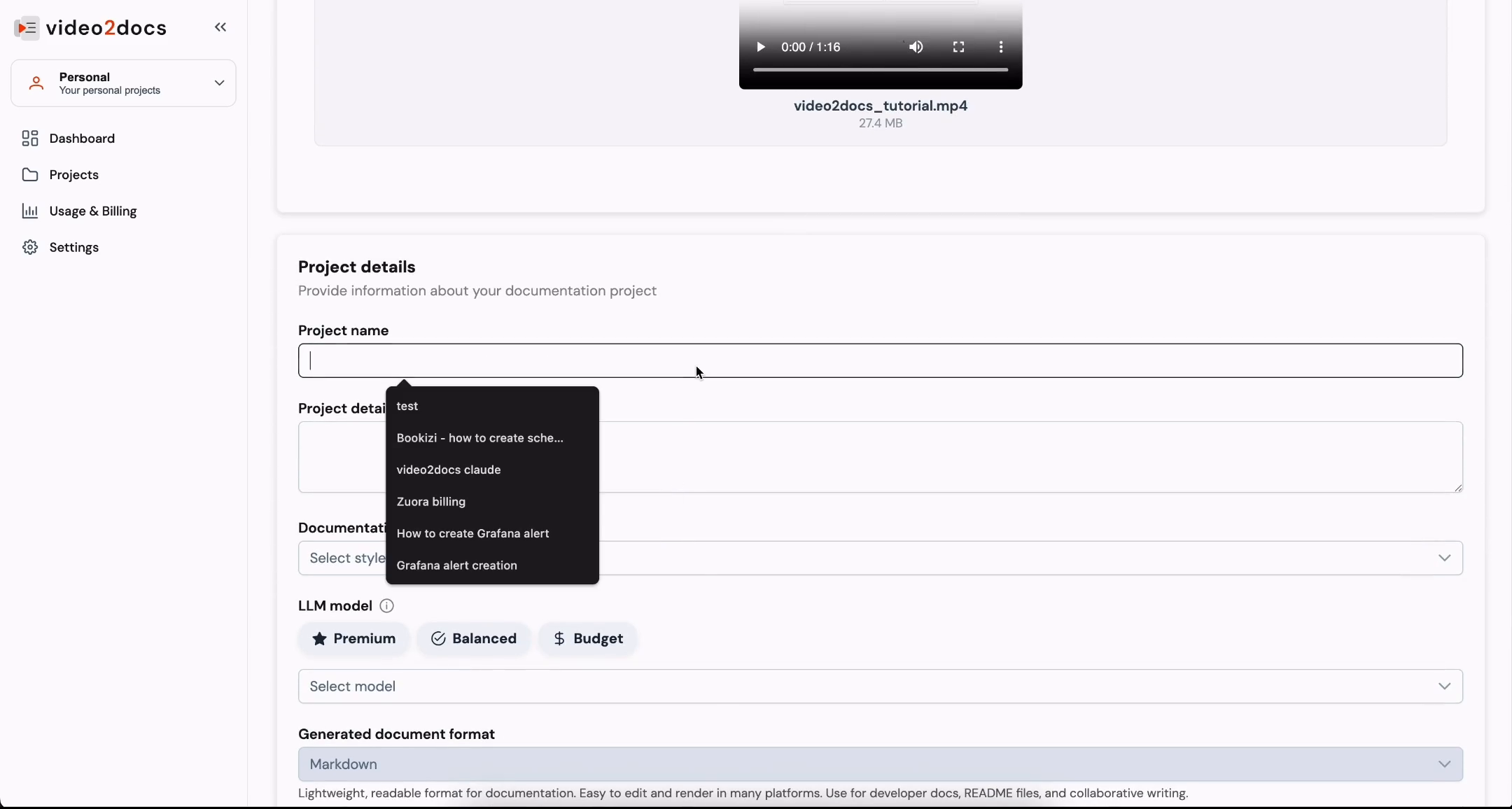
- Click the Project name field. A dropdown appears under the field listing project names you have used before, such as "test," "Bookizi - how to create sche...," and "video2docs claude."
Note: You can ignore these suggestions and type a new name. Do not select one unless you want to reuse that name.
Type
video2docs tutorialin the Project name field.Click the Project details text area and type
video2docs old UI tutorial. This is a short description of the project.Look at the form after entering both values. The Project name field shows "video2docs tutorial," and the Project details text area shows "video2docs old UI tutorial." The Documentation style dropdown still shows "Select style."
Part 2: Configuring Documentation Options
Selecting a Documentation Style
Click the Documentation style dropdown, which shows the placeholder "Select style."
Select Tutorial from the list of styles.
Review the helper text that appears below the field: "Step-by-step guides for teaching users how to accomplish a task or use a feature. Use for onboarding, walkthroughs, or educational content."
💡 Tip: Choose a style that matches your audience. The Tutorial style produces step-by-step guides, which suit onboarding and training materials.
Choosing an LLM Model
Locate the LLM model section. It has an information icon (ⓘ) and three tier buttons: Premium (star icon), Balanced (check-circle icon), and Budget (dollar icon). None of these tiers is selected yet.
Click the Select model dropdown. The list of available models opens.
Note: The dropdown is still open at this point, and no model has been selected yet.
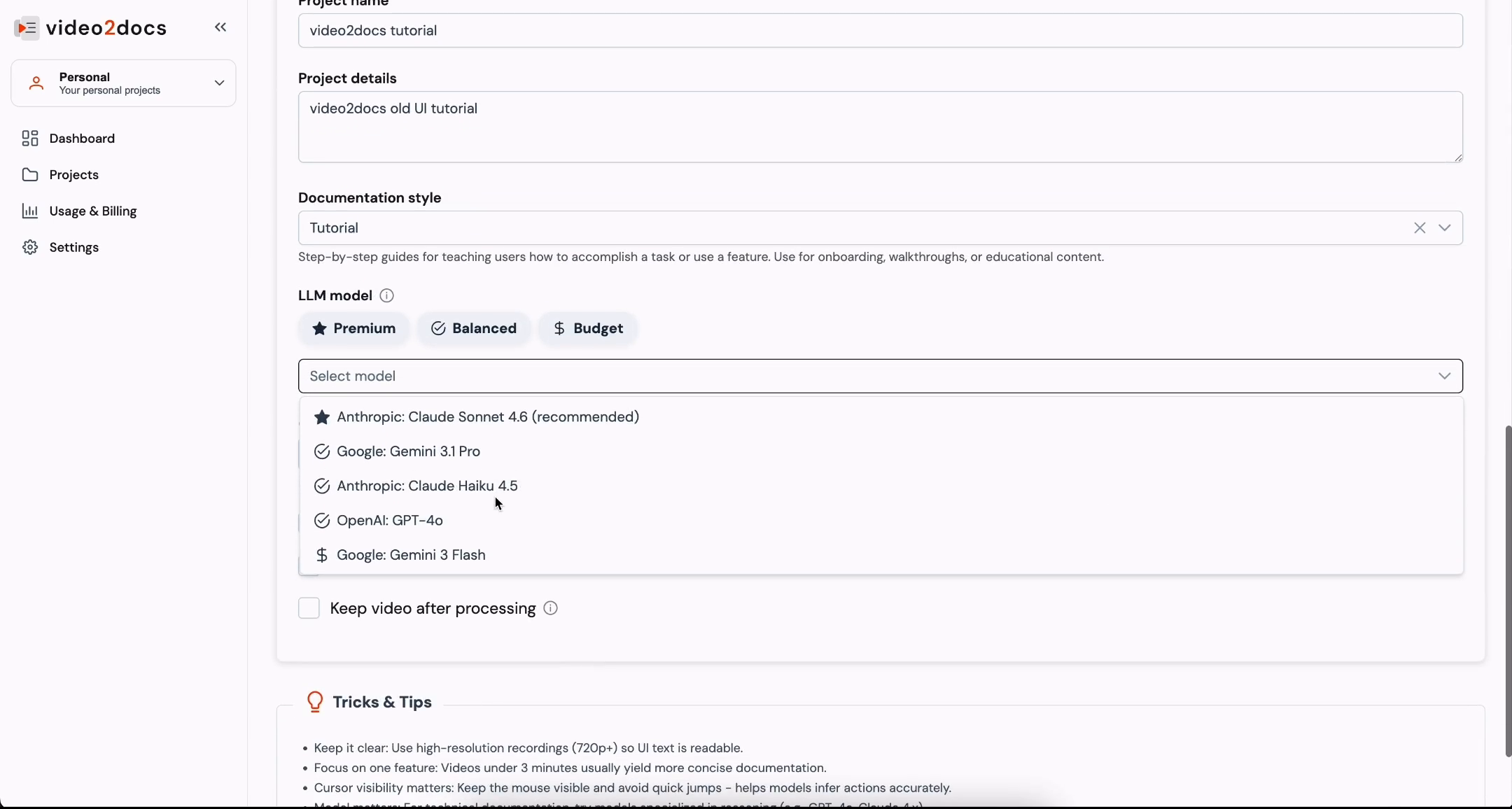
Review the model options in the list. The available options are:
- Anthropic: Claude Sonnet 4.6 (recommended)
- Google: Gemini 3.1 Pro
- Anthropic: Claude Haiku 4.5
- OpenAI: GPT-4o
- Google: Gemini 3 Flash
Move your cursor over Google: Gemini 3 Flash. The option is highlighted in light gray, showing that it is ready to be selected.
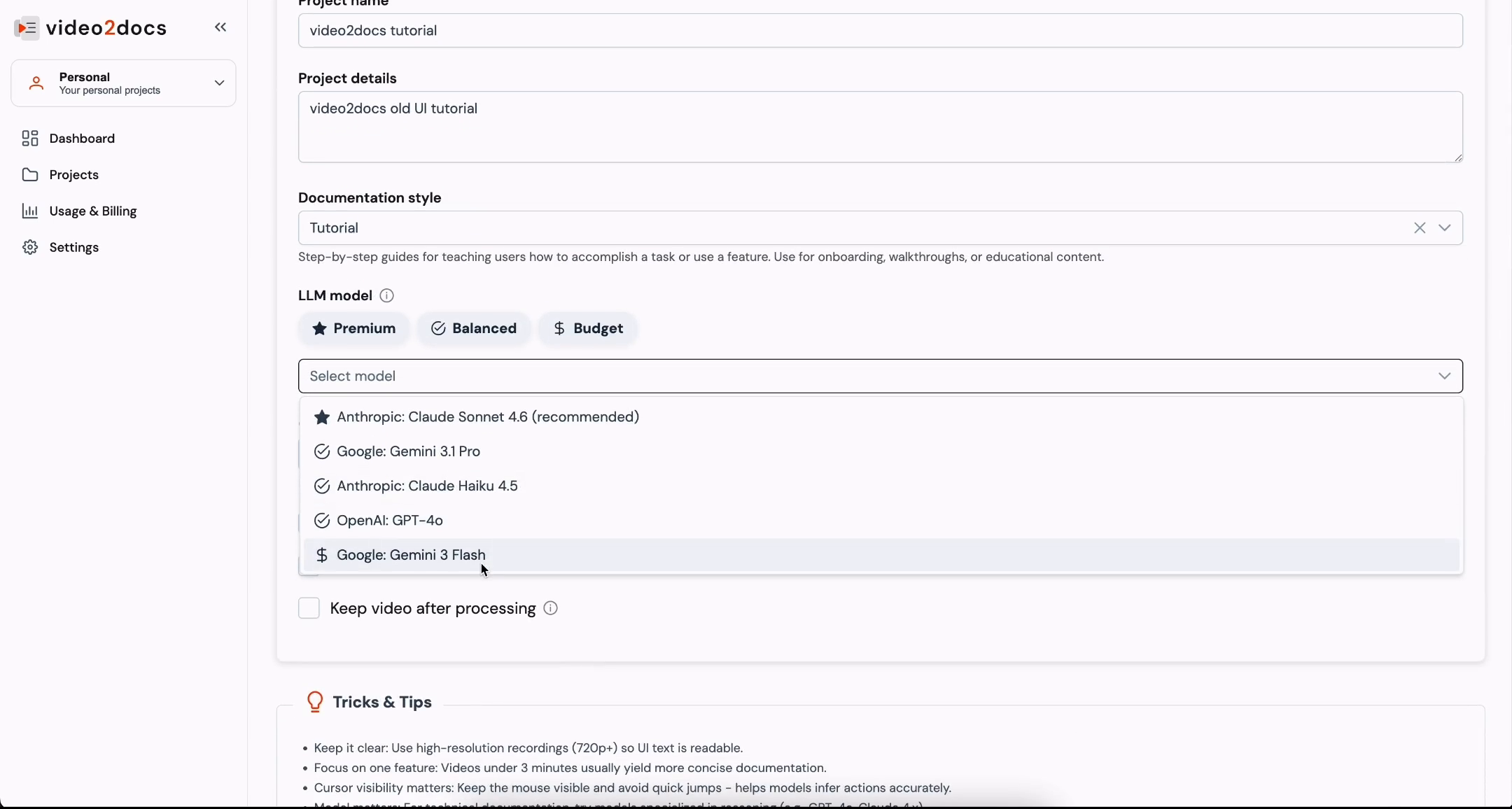
Click Google: Gemini 3 Flash to select it. The dropdown closes, and the model field displays the selected model with an X clear icon and a chevron.
Click the Budget tier button. A green-accented info card titled Budget Tier appears, reading "Fast and cost-effective for simple docs" and "Typical cost: 1-5 credits per project."
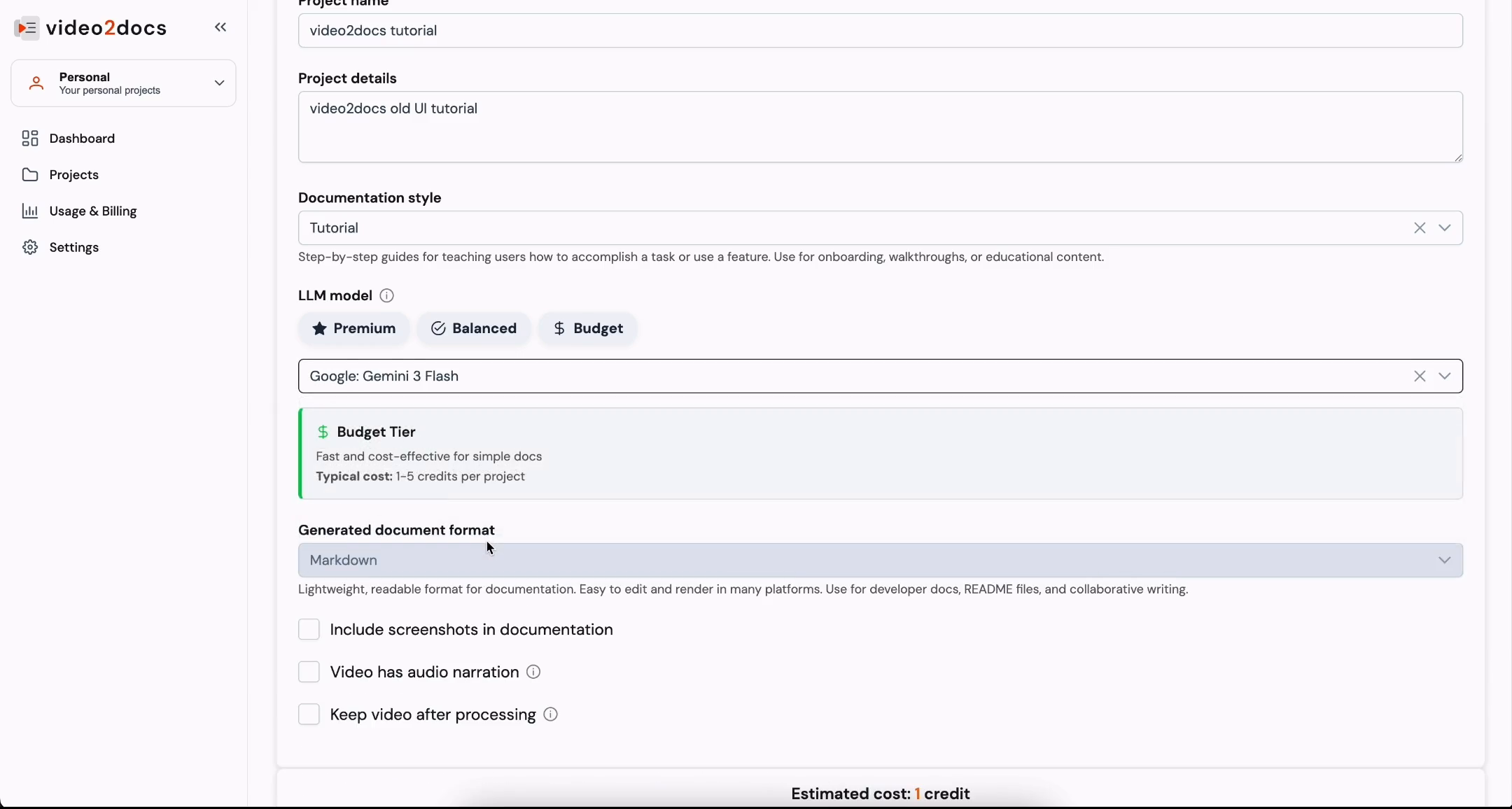
⚠️ Warning: The model you choose affects both output quality and the number of credits the project uses. The Premium tier is designed for more complex documentation, while Budget is suited to simple docs.
Reviewing Output Options and Cost
Scroll down to the Generated document format field. It is set to Markdown and is locked (greyed out). The helper text reads "Lightweight, readable format for documentation. Easy to edit and render in many platforms. Use for developer docs, README files, and collaborative writing."
Review the three checkboxes below the format field:
- Include screenshots in documentation
- Video has audio narration (with an info icon)
- Keep video after processing (with an info icon)
Look at the summary card, which shows Estimated cost: 1 credit and Video length: 2 min. Below it, the Tricks & Tips panel lists practical advice for better results.
Check the Include screenshots in documentation checkbox so that the generated guide includes screenshots from your video.
Note: After you check Include screenshots in documentation, the estimate updates to Estimated cost: 2 credits and the subtext reads "Video length: 2 min + Screenshots."
- Scroll down to review the full settings panel one more time before processing.
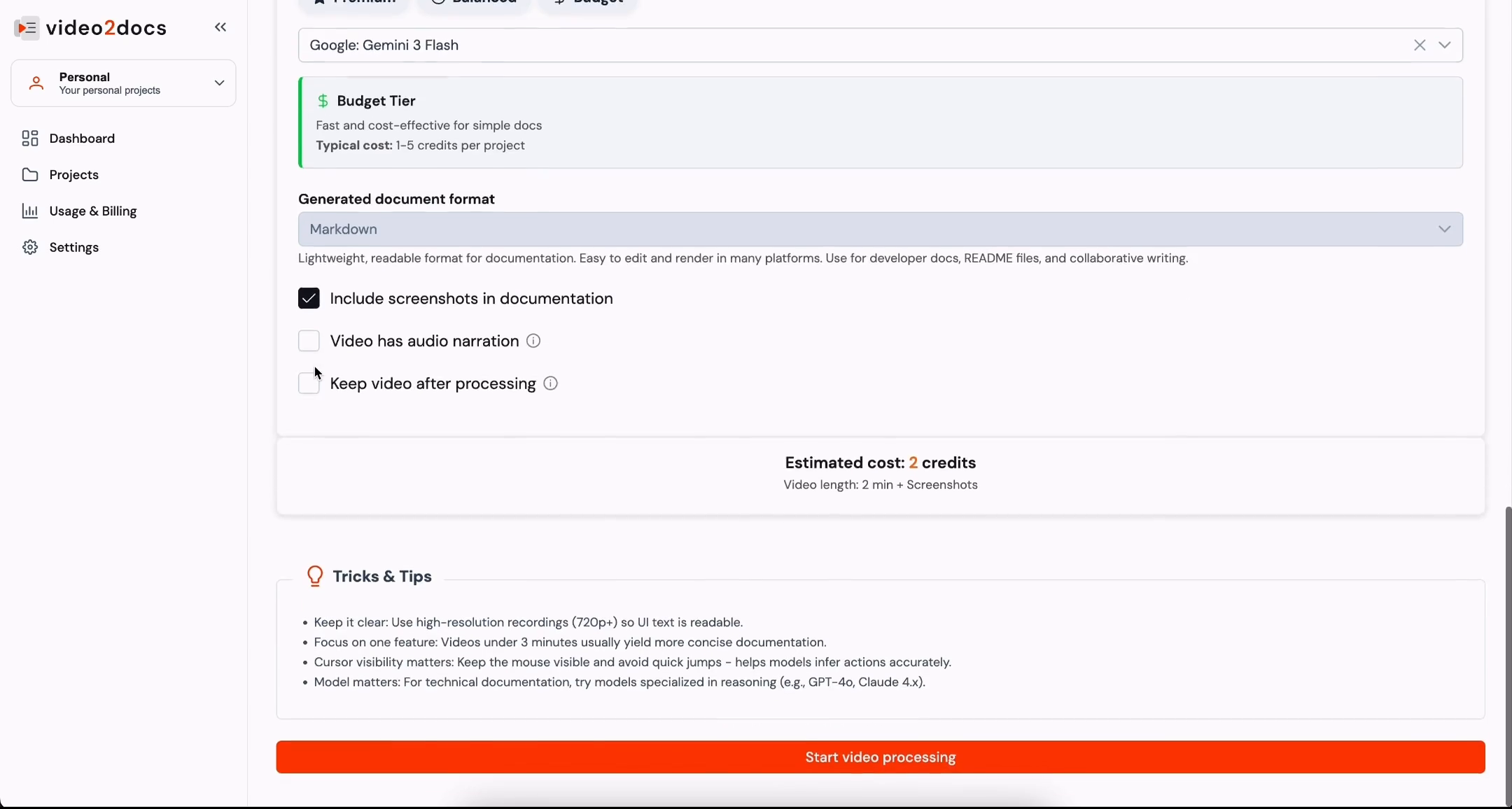
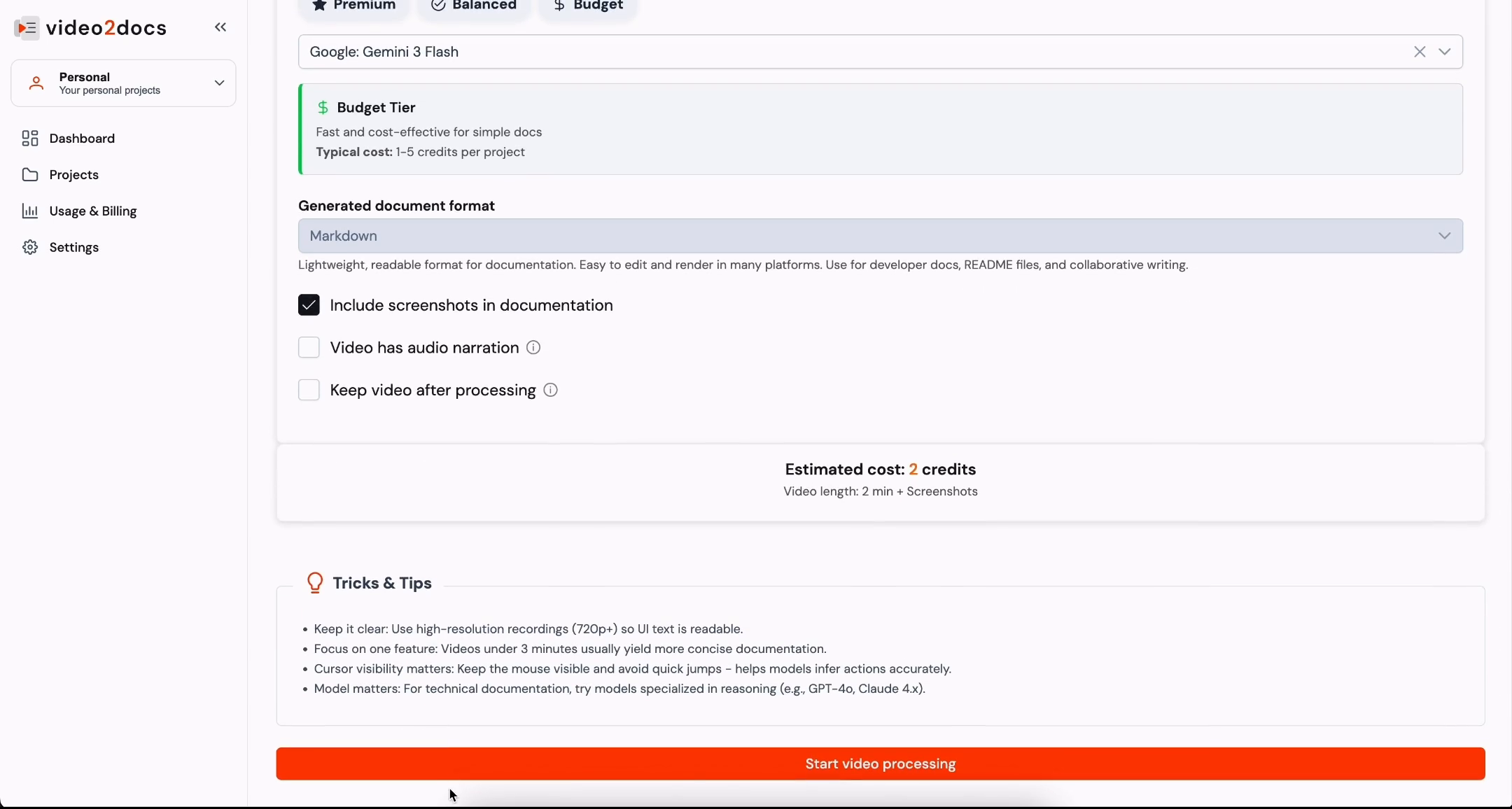
- Scroll to the bottom of the page. The red Start video processing button spans the full width of the content area.
Part 3: Starting Processing and Tracking Progress
Launching Processing
Click the red Start video processing button at the bottom of the form.
Look for the green Project created toast in the upper-right corner. The message reads "Your project was created successfully!"
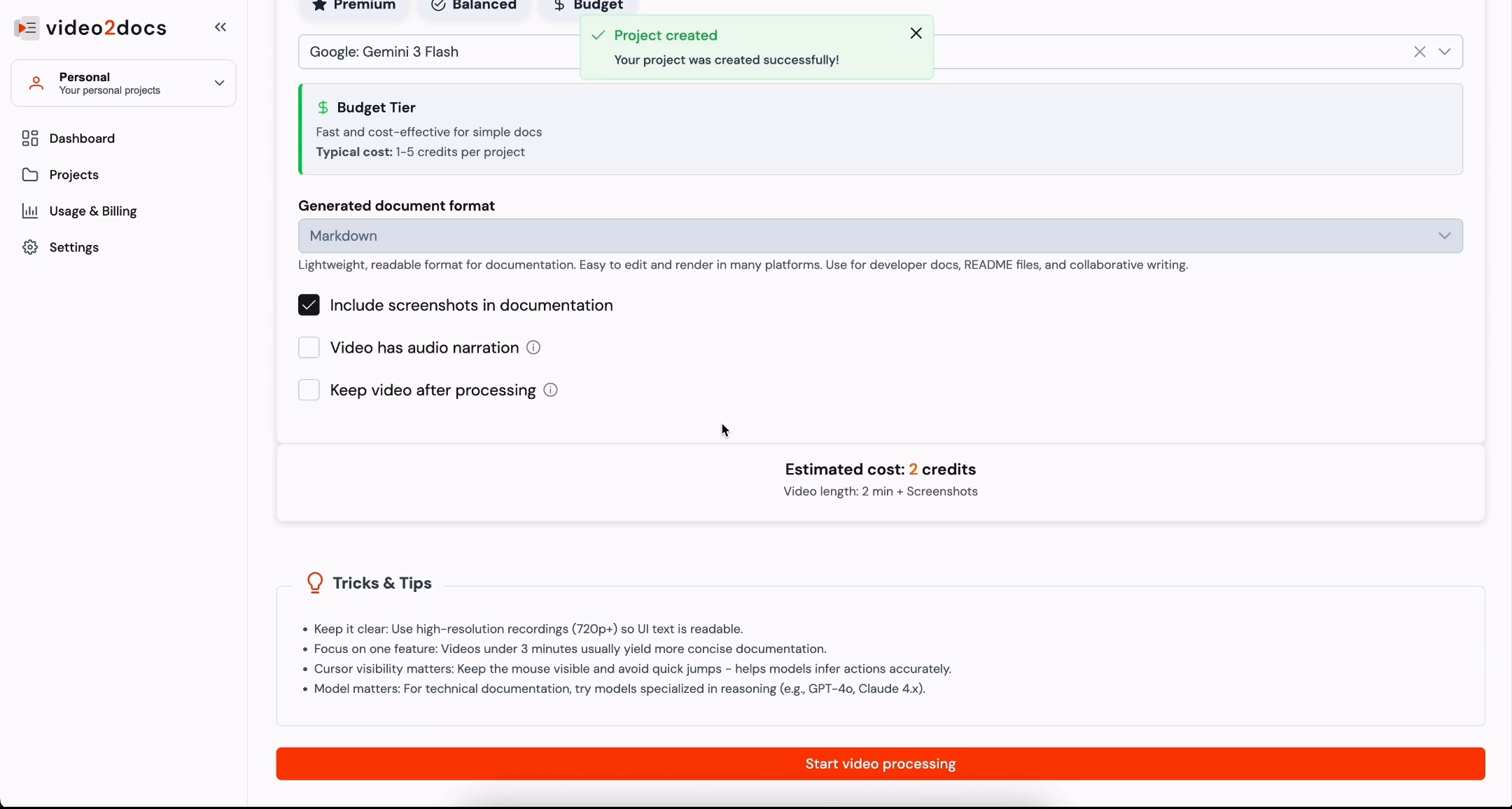
- Close the toast with the X button, or wait for it to disappear.
Tracking Progress on the Projects Page
Click Projects in the left sidebar. The Projects item is highlighted when the page is active.
Wait while the page loads. A red loading spinner appears in the center of the content area while your projects are loaded.
Locate the + New project button in the toolbar. You will use this button to create additional projects later. Do not click it now.
Look at the peach banner that reads "Your documentation is being generated..." with the subtext "Go grab a coffee ☕ (or water) - this page refreshes every 5 seconds."
Review the project card under All projects. It shows a Processing status badge with a spinner, the project name video2docs tutorial, and metadata rows for Video length, Model, Style, and Created. The Video length reads
00:00while processing is incomplete.
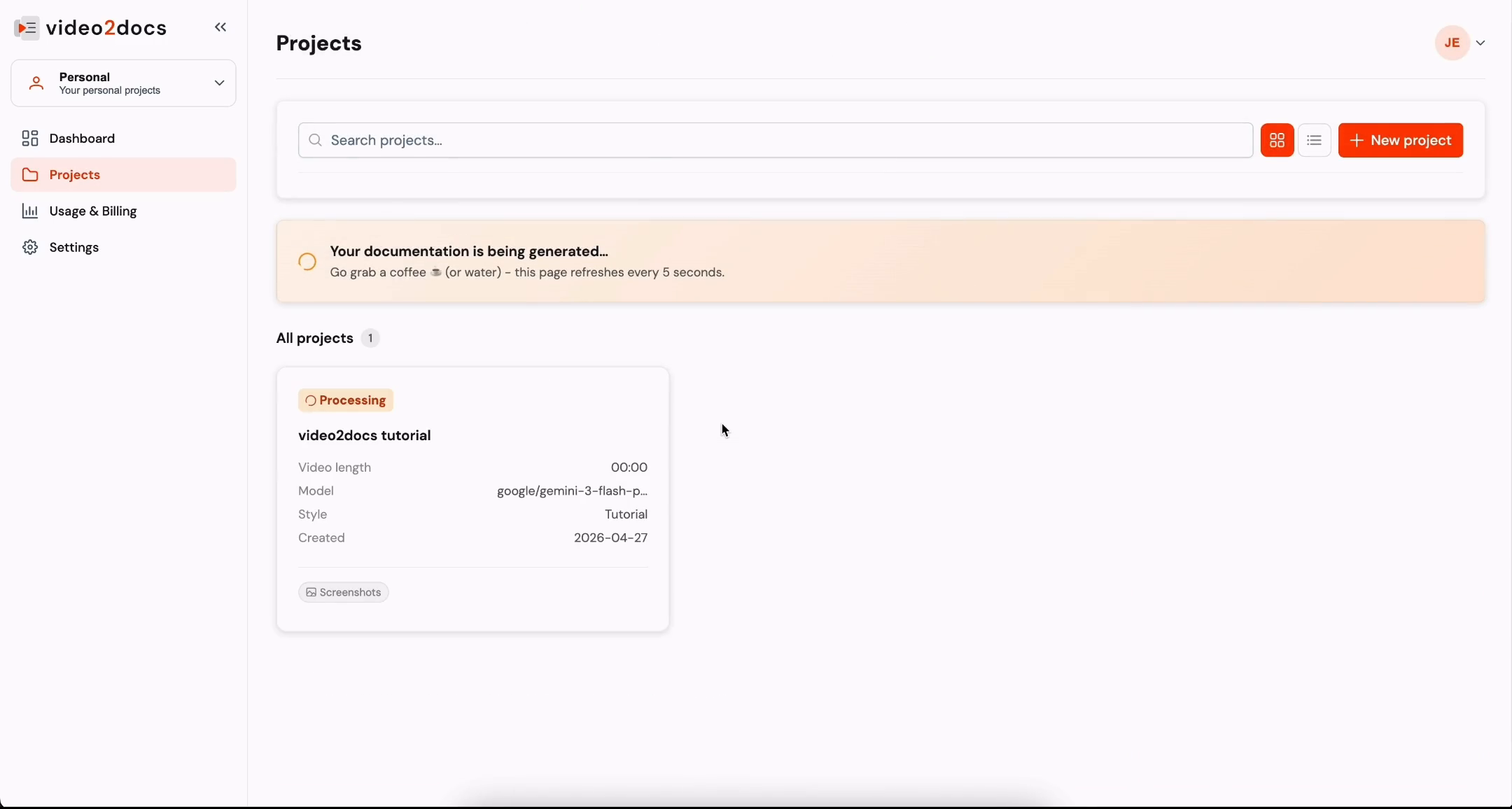
- Wait for the page to refresh. When processing finishes, the status badge changes to a green Completed badge with a check icon, and the Video length updates to
01:16.
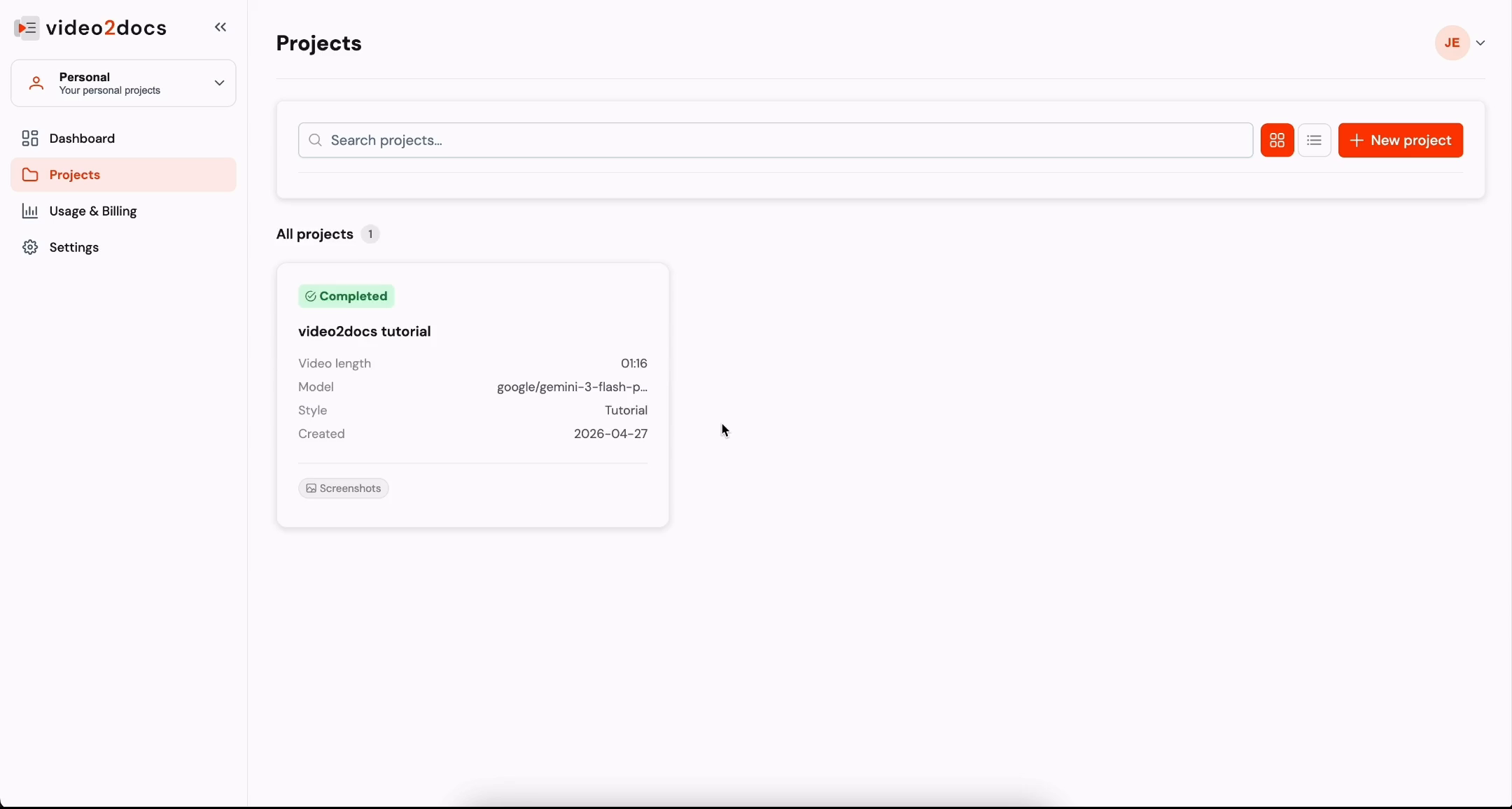
- Click the video2docs tutorial project card to open it.
💡 Tip: You do not need to keep the page open during processing. You can return to the Projects page at any time to check the status.
Part 4: Reviewing the Generated Documentation
Opening the Project Details Page
Wait while the Project details page loads. A red spinner may appear in the content area while the page content loads.
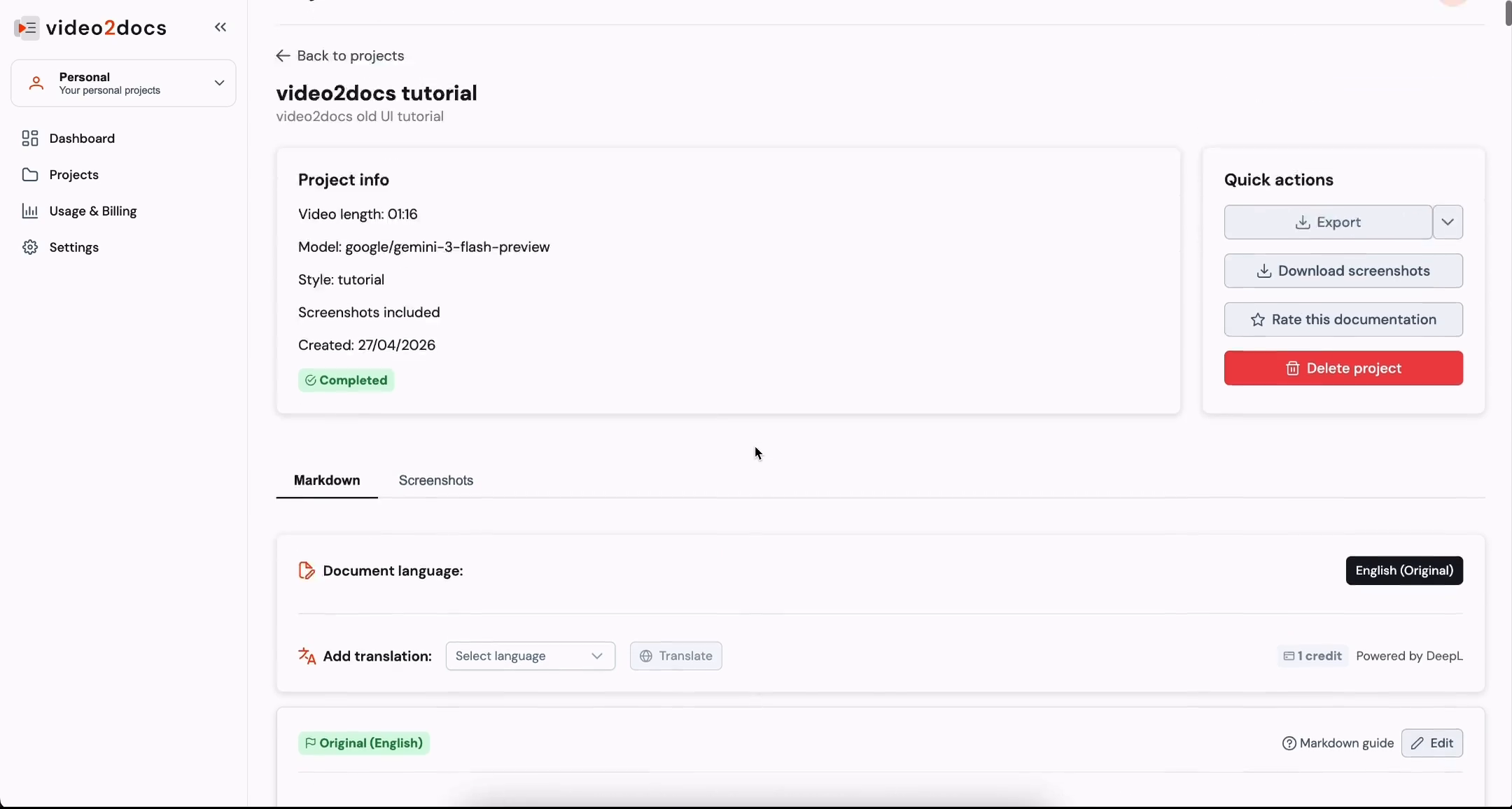
Review the Project details page once it has loaded. The page includes a ← Back to projects link at the top.
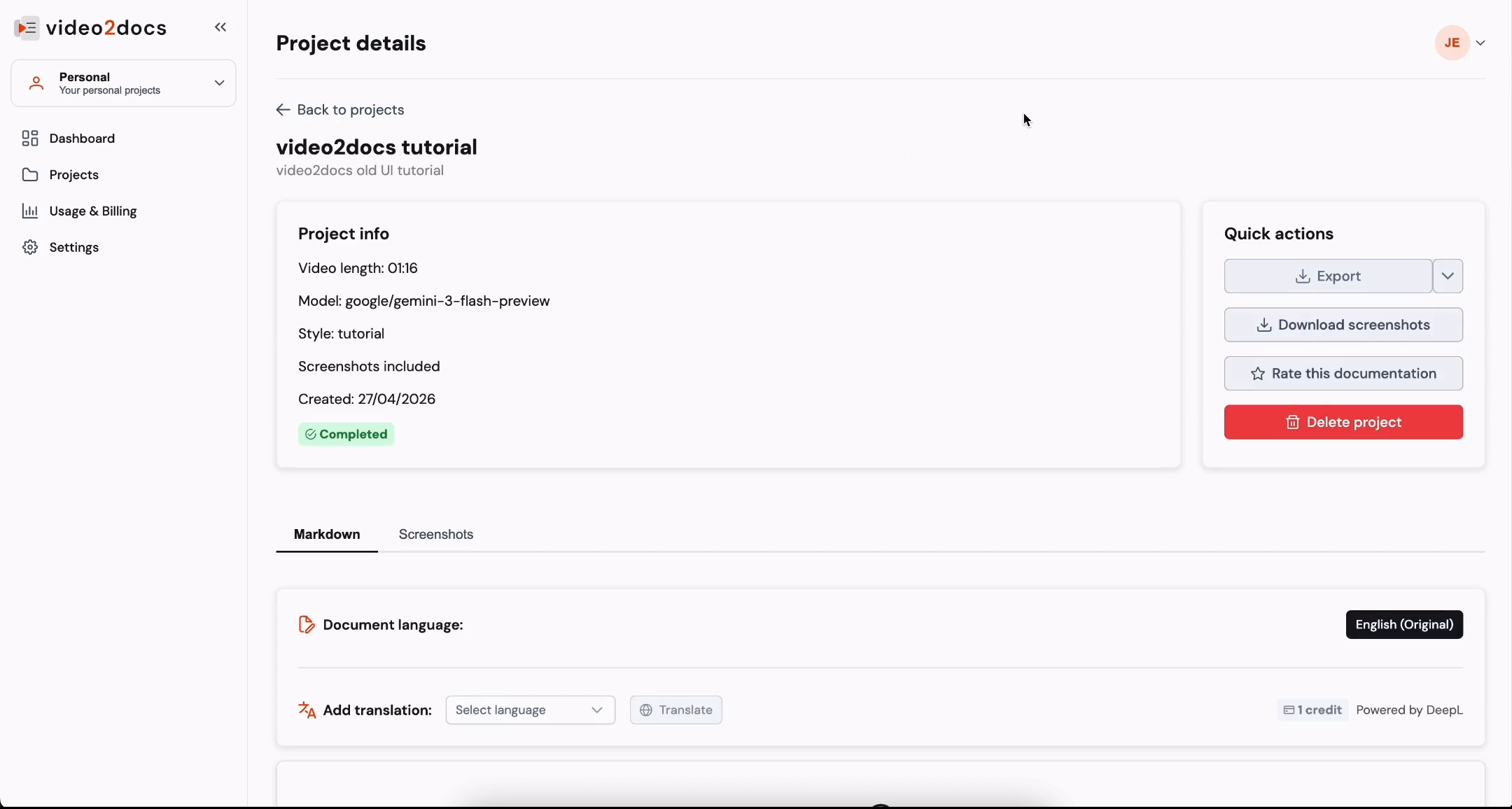
Review the Project info card, which lists:
- Video length: 01:16
- Model: google/gemini-3-flash-preview
- Style: tutorial
- Screenshots included
- Created: 27/04/2026
- A green ✓ Completed badge
Review the Quick actions card. It contains:
- An Export split button with a dropdown chevron
- Download screenshots
- ☆ Rate this documentation
- A red 🗑 Delete project button
⚠️ Warning: The Delete project button permanently removes the project. Do not click it unless you want to delete the project.
Reading the Markdown Tab
Confirm that the Markdown tab is active (underlined). The Document language: row shows a black English (Original) button.
Review the Add translation: row. It contains a Select language dropdown, a Translate button with a globe icon (greyed out until you choose a language), and the note 1 credit with Powered by DeepL.
Look at the document card. A green Original (English) badge appears at the top left, with a Markdown guide help link and an outlined Edit button at the top right.
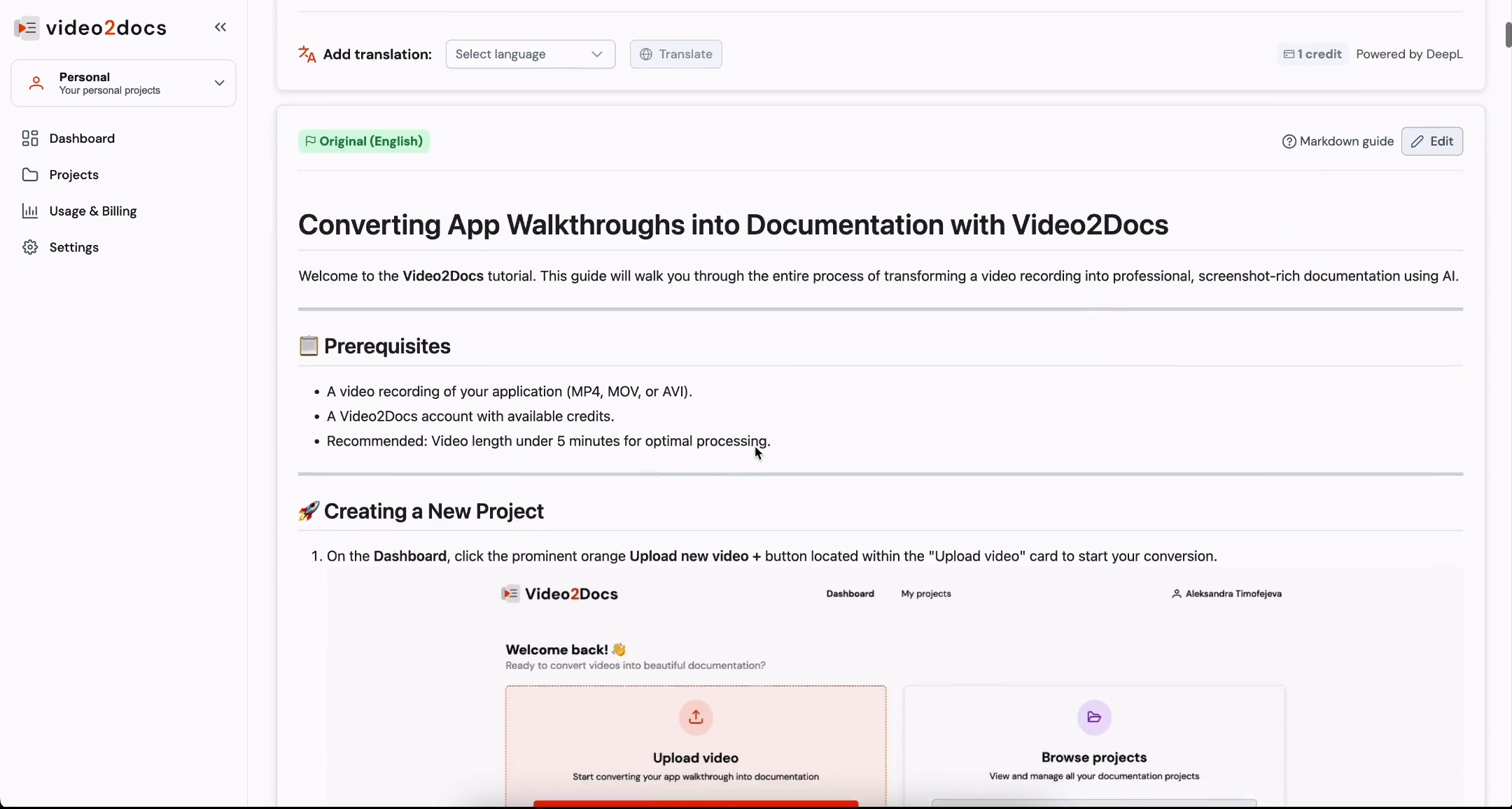
Scroll down to read the rendered document. The document begins with the H1 heading Converting App Walkthroughs into Documentation with Video2Docs, followed by an introduction paragraph and a horizontal rule.
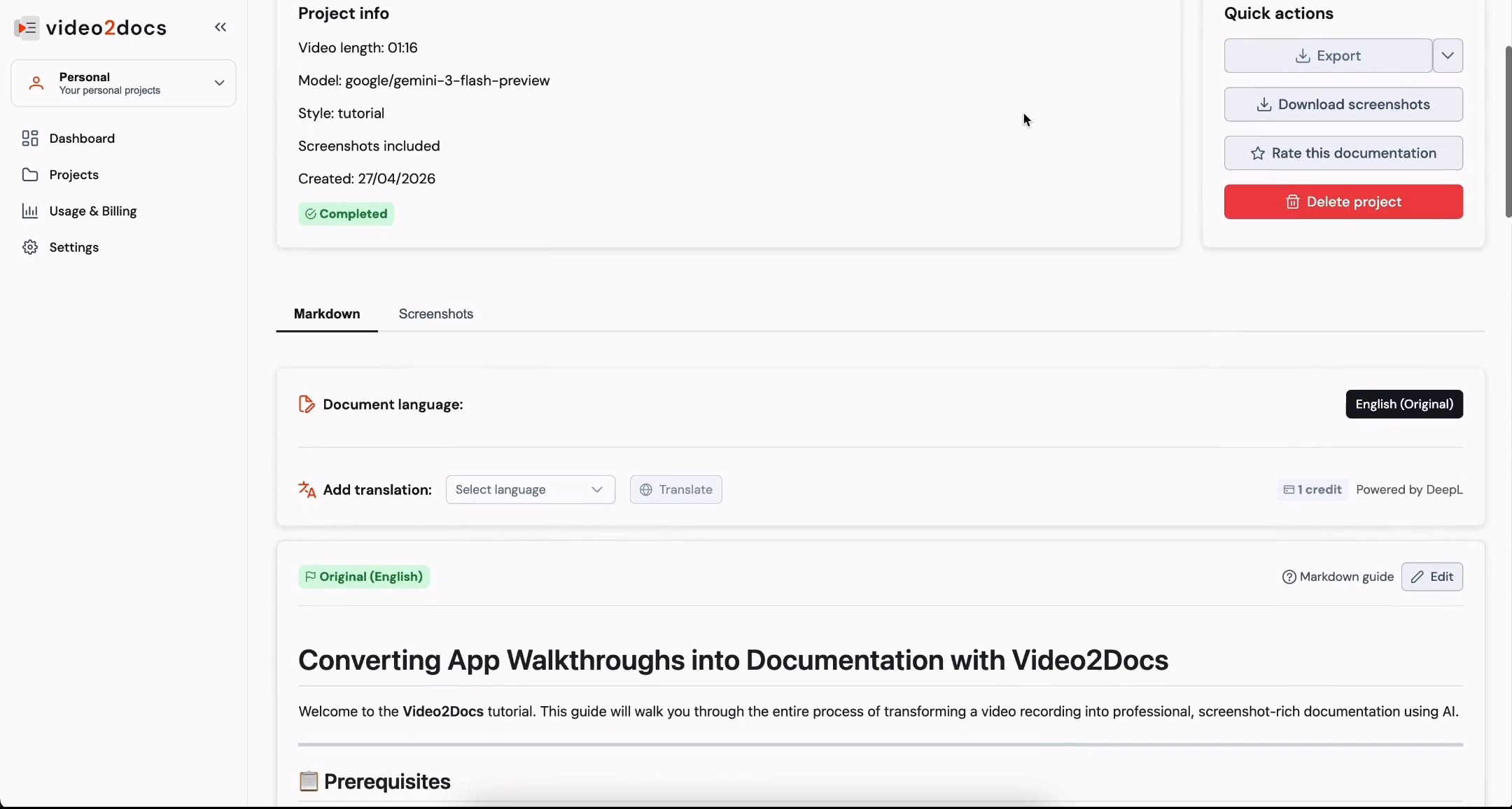
- Review the Original (English) card at the top of the document. This confirms the language of the generated output.
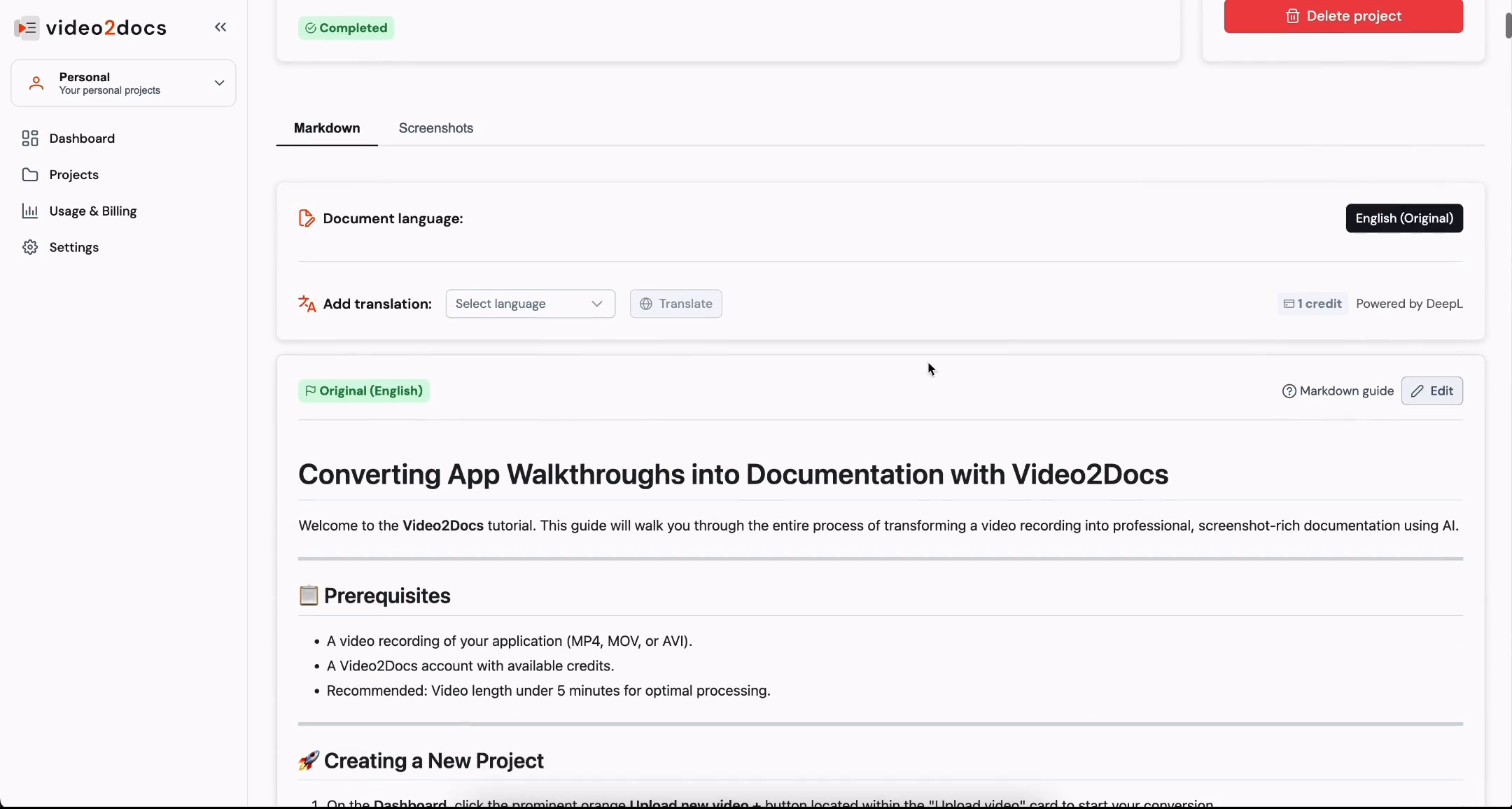
Scroll through the document content. The guide includes sections such as 📋 Prerequisites and 🚀 Creating a New Project. The Prerequisites section lists:
- A video recording of your application (MP4, MOV, or AVI)
- A Video2Docs account with available credits
- Recommended: video length under 5 minutes for optimal processing
Keep scrolling to read the Creating a New Project section. Step 1 of that section explains how to click the Upload new video + button on the Dashboard. The document also includes an embedded screenshot of the app.
Viewing the Screenshots Tab
Return to the top of the Project details page if needed. Confirm that the Markdown tab is currently active.
Click the Screenshots tab to switch views. The underline moves to Screenshots, which confirms that the tab is active.
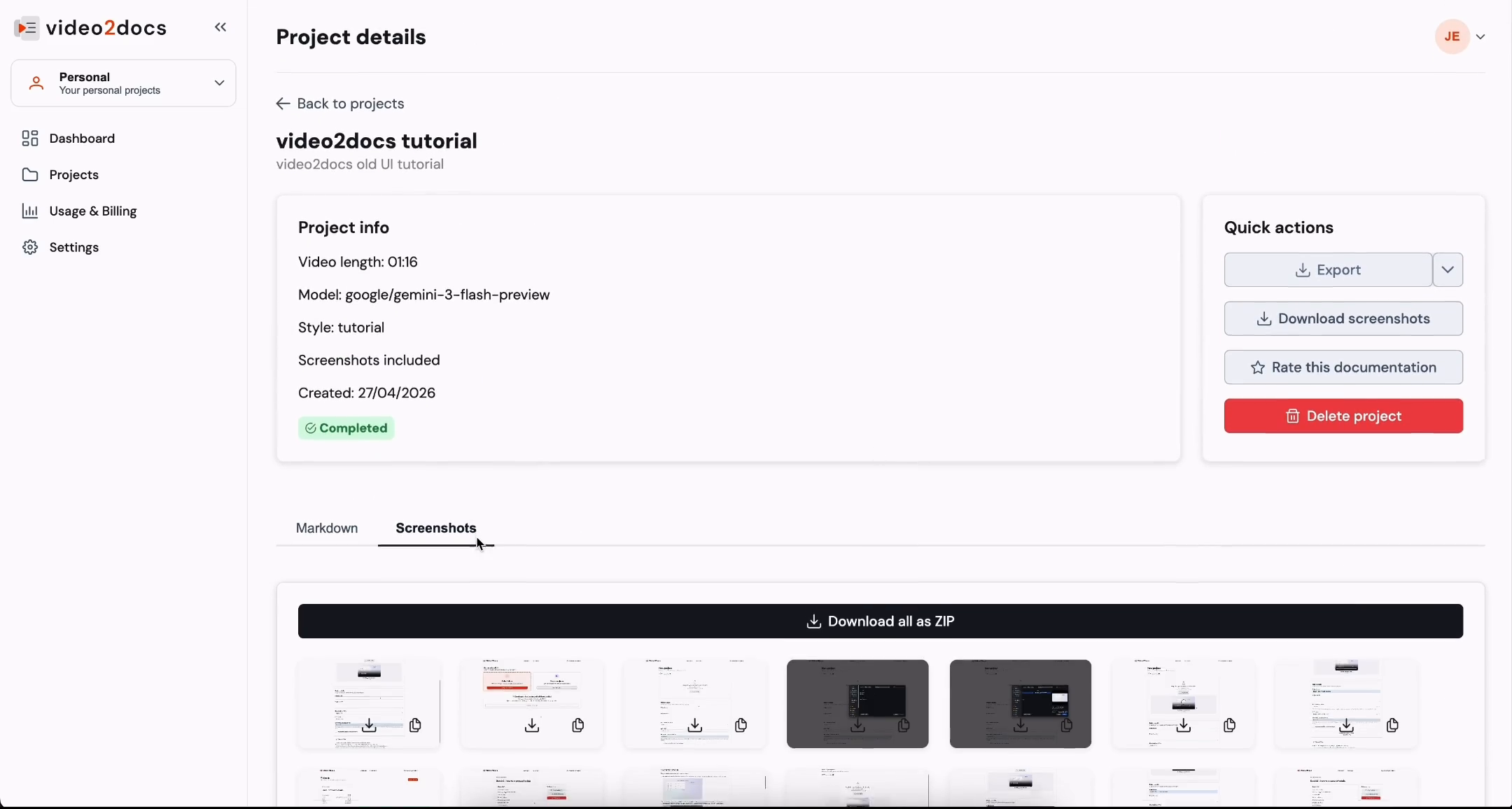
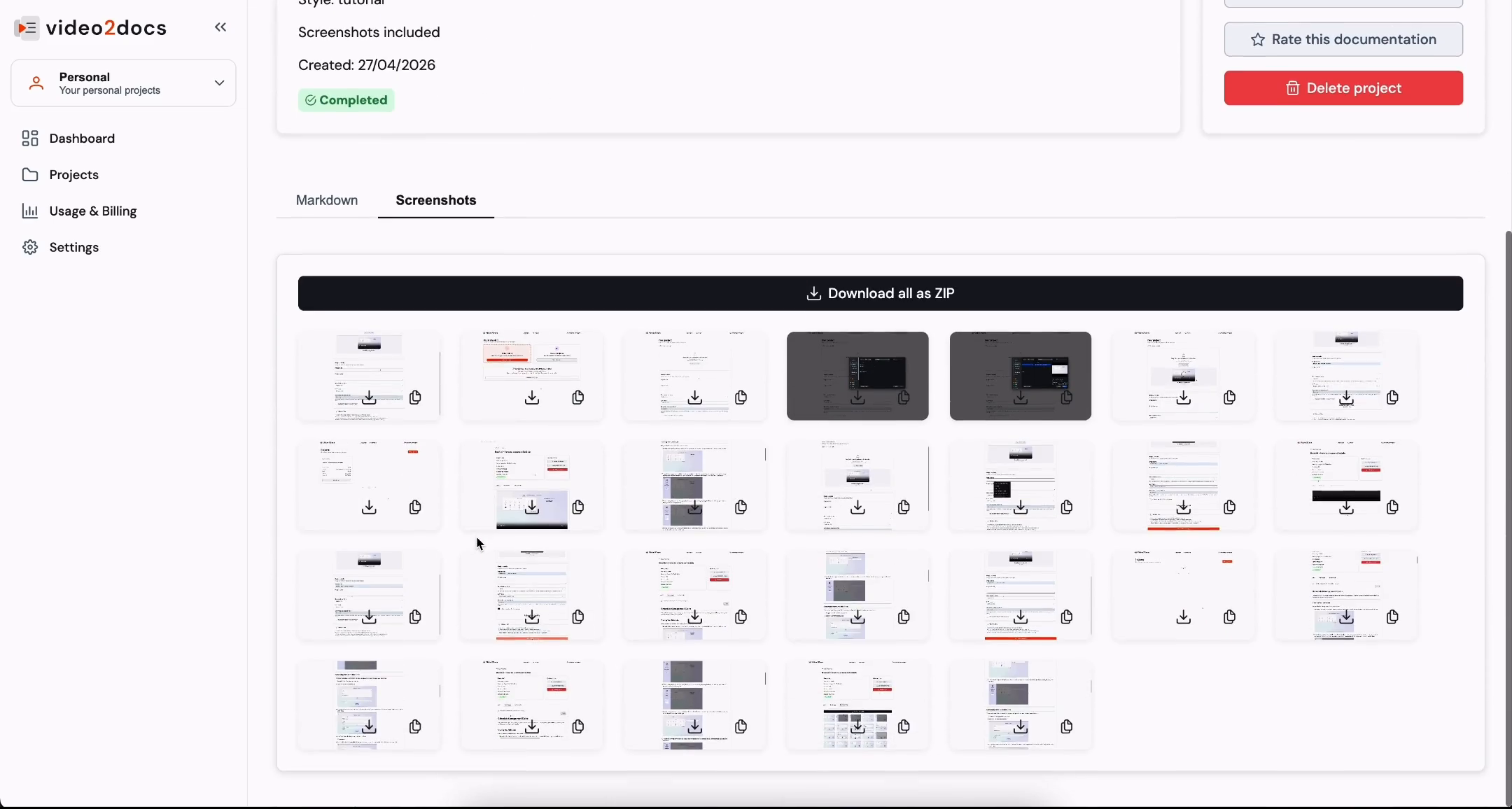
Review the screenshot gallery. The gallery contains a grid of thumbnail cards. Each card has a download icon and a copy icon in its lower corners.
Click the full-width black Download all as ZIP button above the gallery to download every screenshot at once.
💡 Tip: To download a single screenshot, click the download icon on its thumbnail card. To copy one, click the copy icon.
- Click the Markdown tab to return to the document view.
Reviewing the Guide Content
- Review the guide in the Original (English) card. Read the introduction and the Prerequisites section.
- Continue reading the Creating a New Project section. Step 2 explains that you will be directed to the New project interface, where you should review the upload constraints and the empty Project details form.
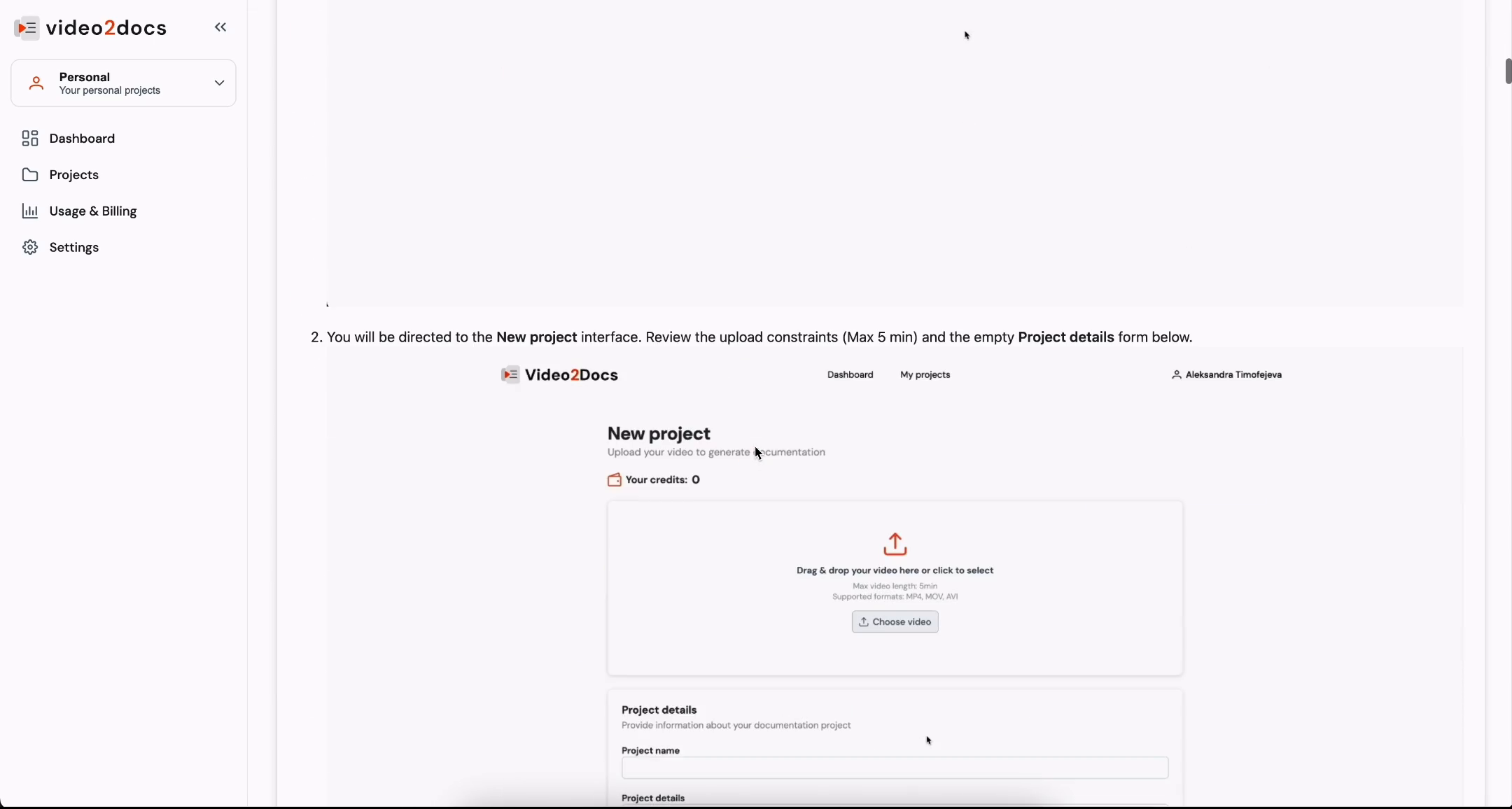
Scroll down to the end of the Prerequisites list. It ends with the recommendation to keep video length under 5 minutes for optimal processing.
Return to the top of the project page. The header shows the project title video2docs tutorial, the subtitle video2docs old UI tutorial, and a ← Back to projects link.
Exporting the Documentation
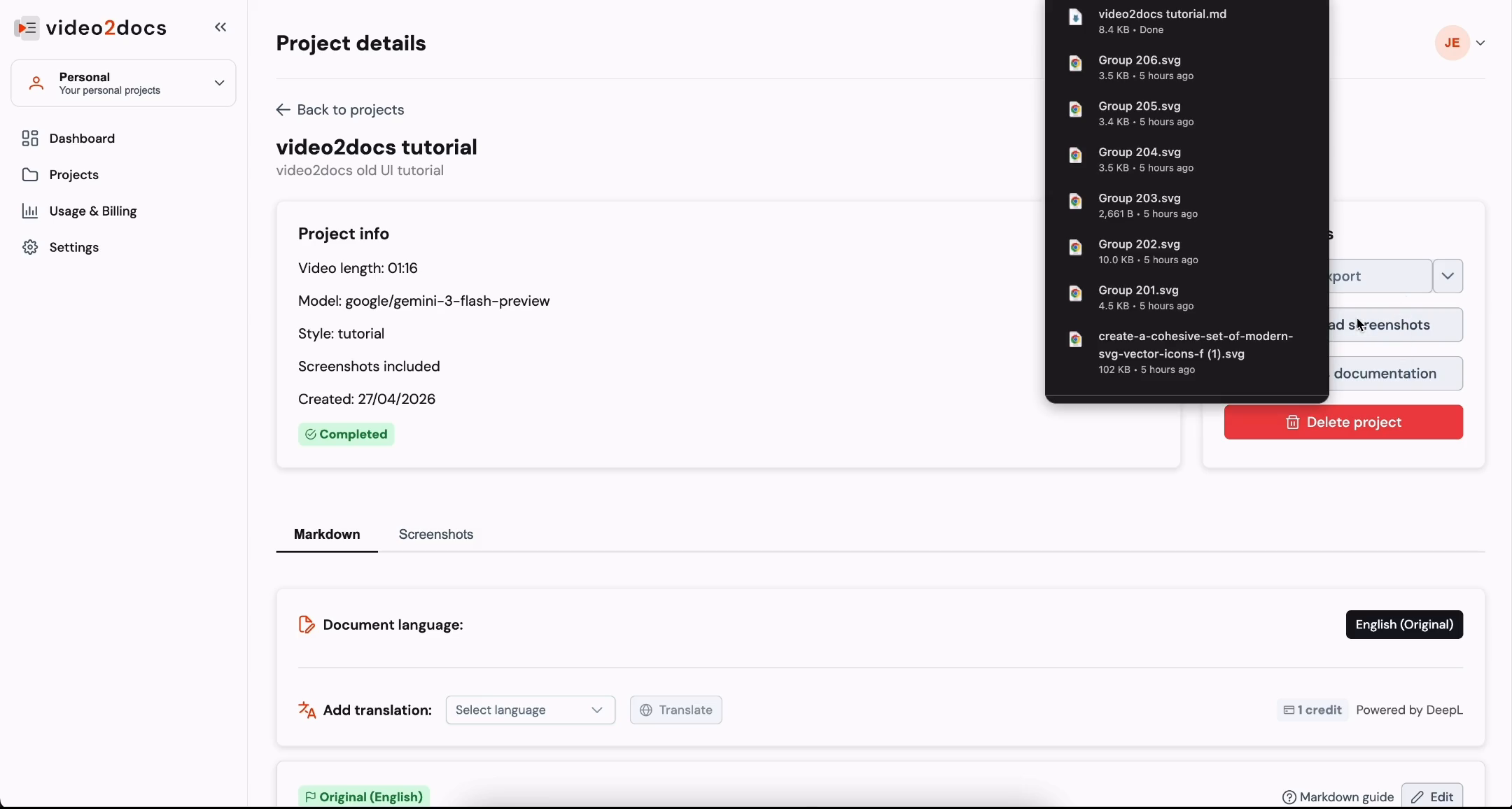
Click the chevron next to the Export button in the Quick actions card. A dropdown panel opens and lists the files available for export.
Review the file list. It includes the main document, video2docs tutorial.md (8.4 KB, marked Done), along with the SVG assets such as Group 206.svg and Group 205.svg.
- Select the Markdown file, video2docs tutorial.md, to download it to your computer.
Note: The exported Markdown file can be committed to a GitHub repository, added to a knowledge base, or edited in any text editor.
Reviewing the Generated Content
Scroll through the generated document from the beginning. Each section contains step-by-step instructions, and screenshots from the video are embedded where they are relevant.
Continue scrolling to review intermediate sections. The sample document in this tutorial covers a section titled Generating New Schedule Slots, which describes how to automatically create multiple schedule slots.
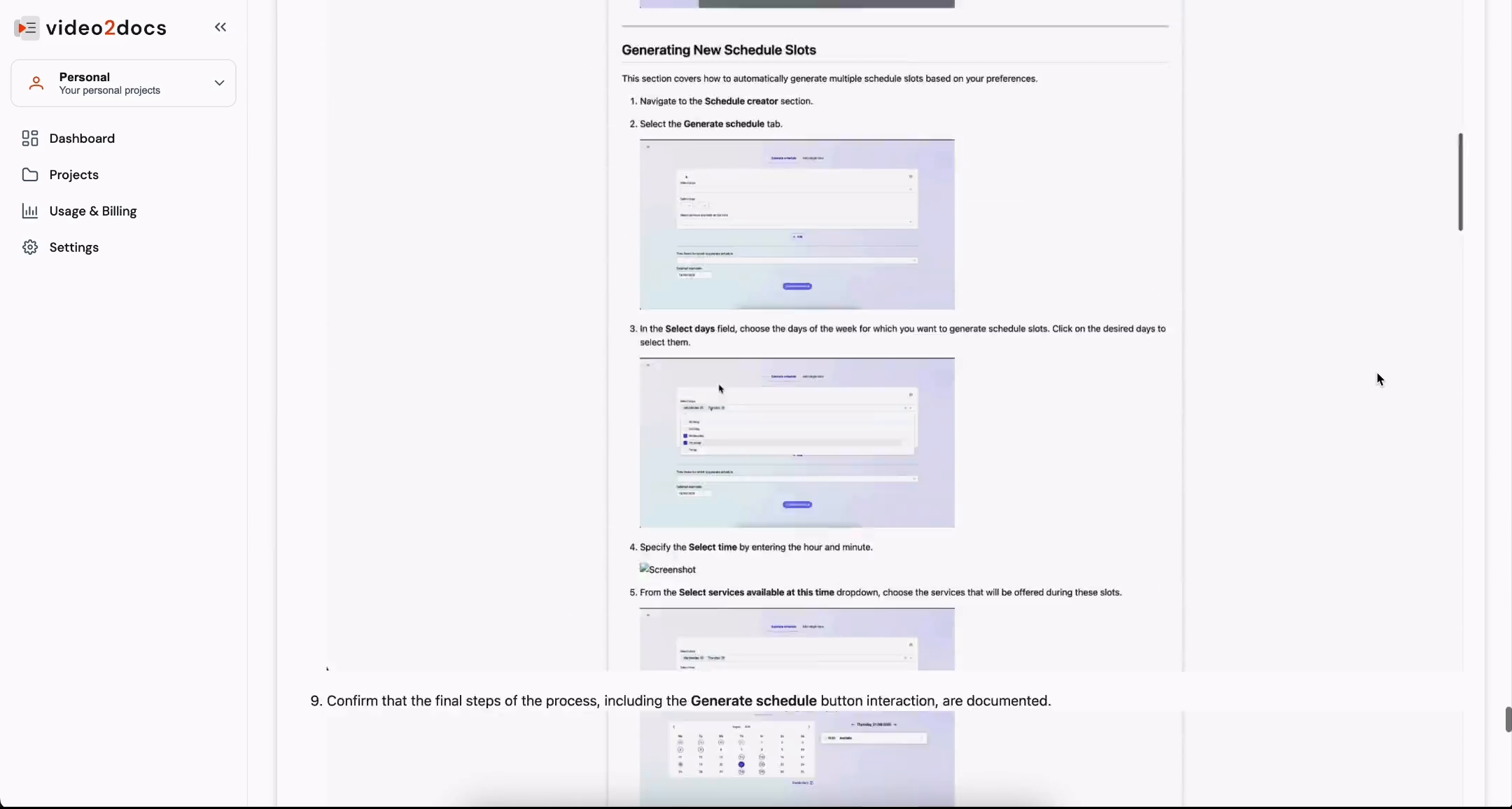
- Scroll to the bottom of the document. The page ends with a green check emoji and the heading ✅ Conclusion, followed by a What's Next? section.
💡 Tip: Review the generated document carefully before sharing it. Check the steps against your application to confirm that the instructions are accurate.
Part 5: Rating the Documentation
Submitting a Rating
Scroll to the Conclusion section at the bottom of the document. Locate the How was the documentation? card, which shows five empty stars with the text "Click to rate."
Click the fifth star. The Rate Documentation modal opens.
Review the modal. It shows the question How would you rate the documentation? and five stars, all filled in orange, with the label Excellent.
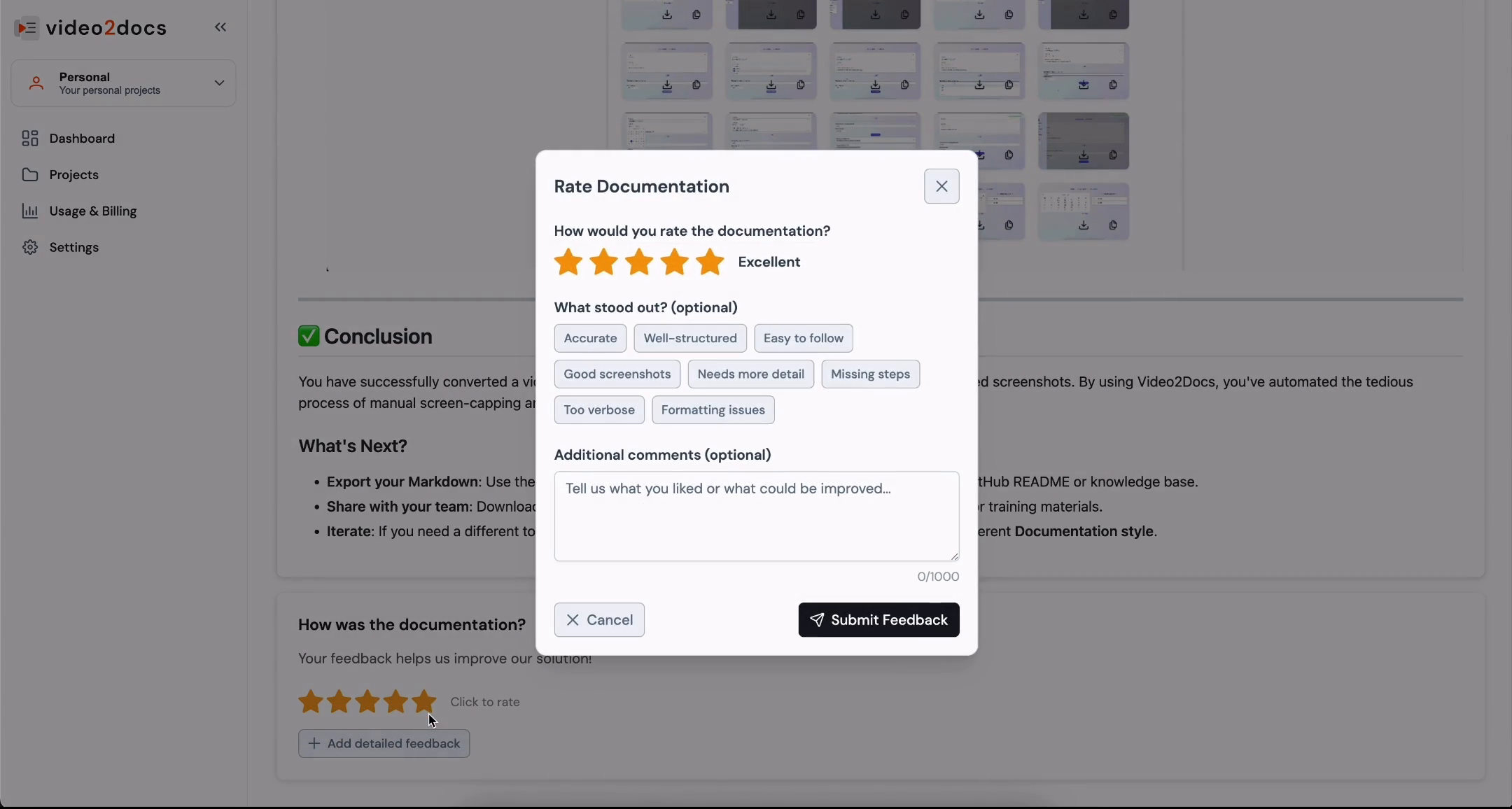
(Optional) Select one or more tags under What stood out? (optional). The options are:
- Accurate
- Well-structured
- Easy to follow
- Good screenshots
- Needs more detail
- Missing steps
- Too verbose
- Formatting issues
(Optional) Type comments in the Additional comments (optional) text area. The field allows up to 1000 characters.
Click the black Submit Feedback button to send your rating.
Note: Click Cancel or the X icon to close the modal without saving your feedback.
- Look for the green Thank you! toast with the message "Your feedback has been submitted." Close it with the X button if needed.
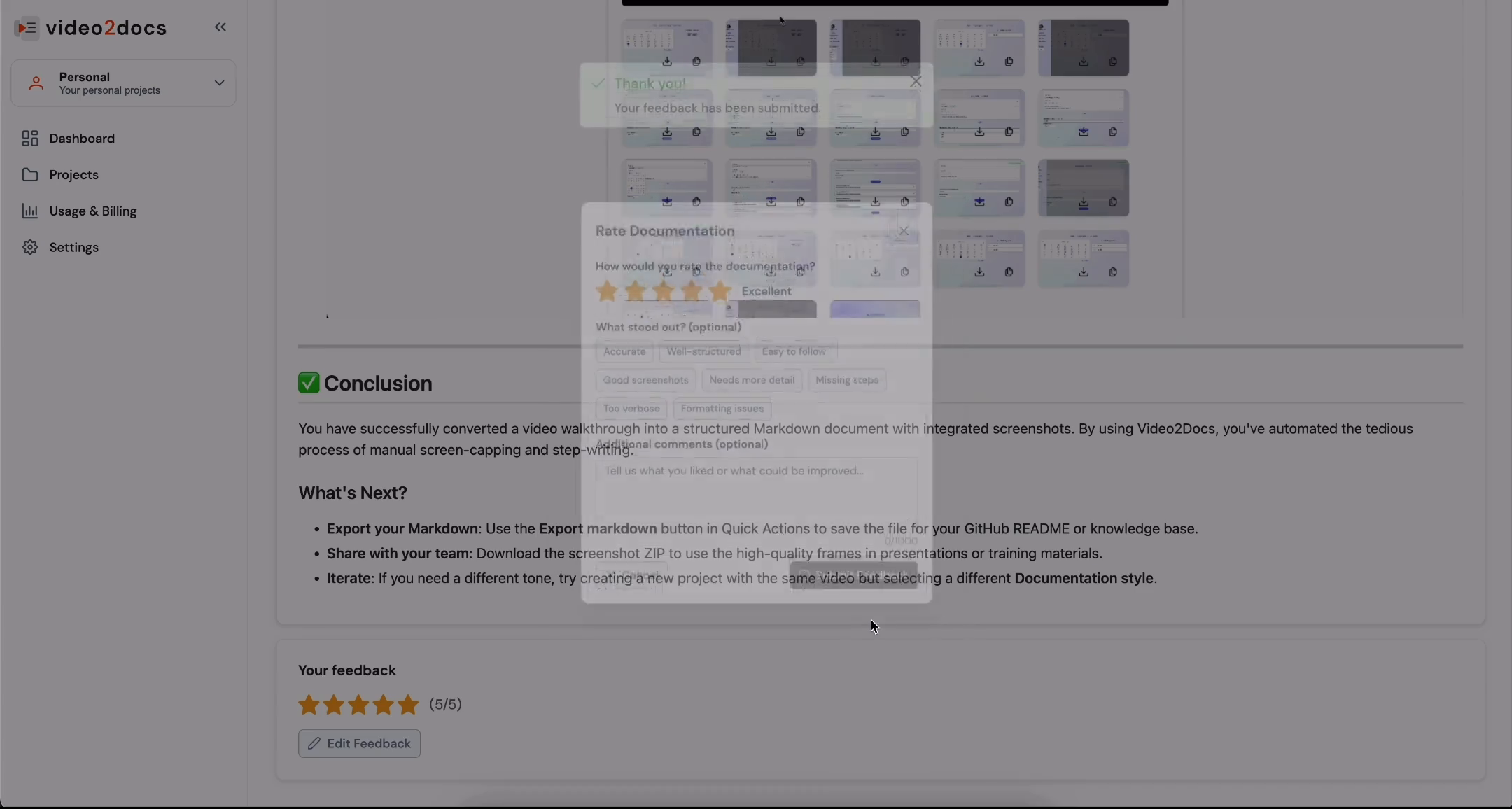
- Scroll down to the Your feedback card. It displays your rating as five filled orange stars followed by (5/5), with an Edit Feedback button below the stars.
💡 Tip: If you change your mind, click Edit Feedback to update your rating.
Checking the Output
Scroll through the generated document to confirm that the output is complete. The Conclusion section summarizes the result, and the What's Next? list suggests follow-up actions.
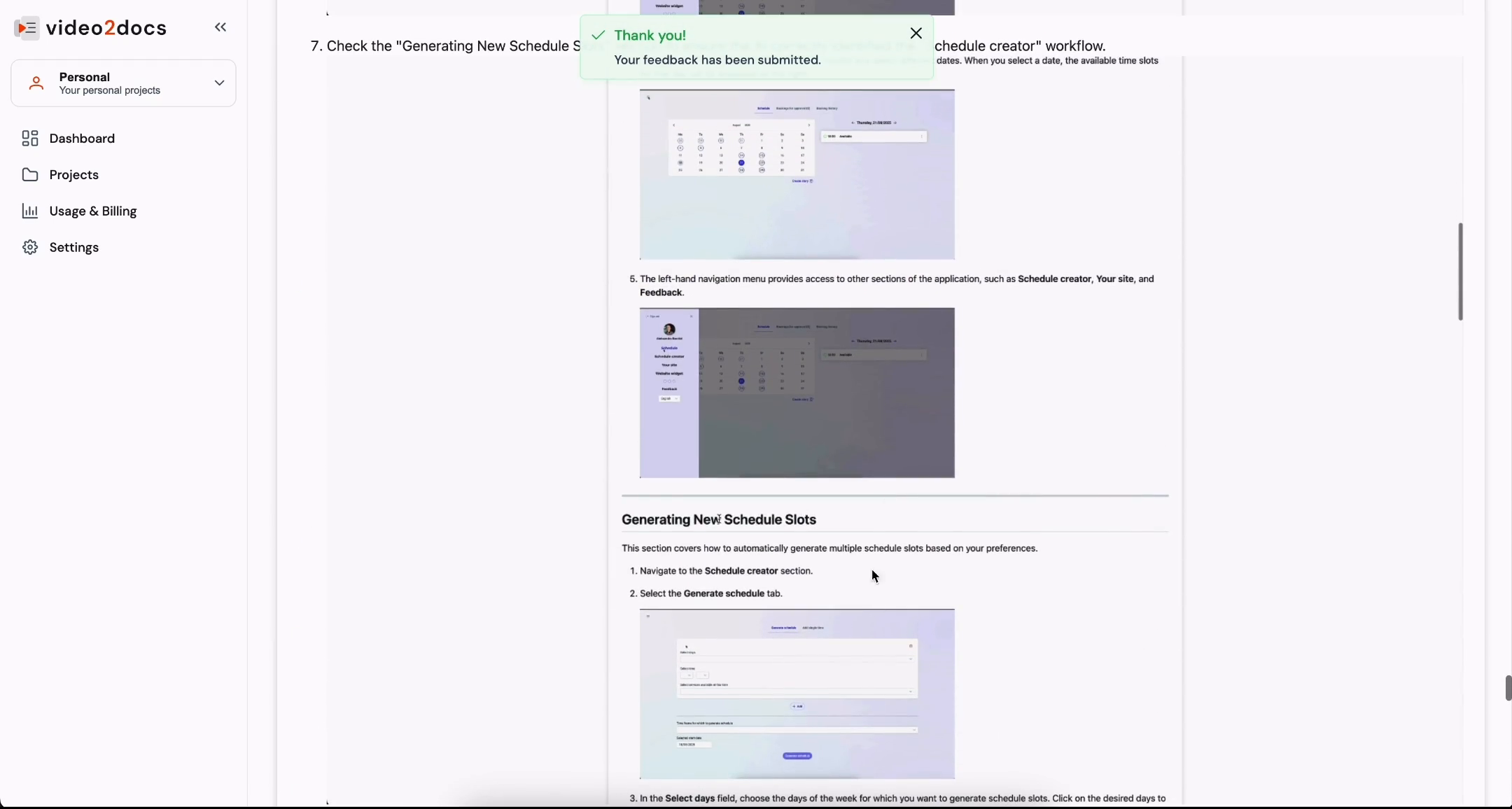
Review the sample content in the lower sections of the document. The guide includes numbered steps with embedded screenshots. An example from this section reads "Navigate to the Schedule creator section."
🎉 Conclusion
You have completed the full video2docs workflow. You created a new project, uploaded a screen recording, configured the documentation style and AI model, started processing, reviewed the generated Markdown and screenshots, exported your documentation, and submitted a rating.
With these steps, you can turn any short walkthrough into a structured guide that is ready to share with your team or publish in a knowledge base.
🚀 What's Next?
Now that you know the workflow, consider these next steps:
- Document another application: Record a new walkthrough and create a second project with a different name and style.
- Try a different documentation style: Create a new project from the same video with a different Documentation style to compare the results.
- Translate your guide: Use the Select language dropdown and the Translate button in the Markdown tab to create a translated version. Note that translation costs 1 credit.
- Edit the output: Click the Edit button in the Original (English) card to refine the generated content.
- Share your documentation: Download the screenshot ZIP or export the Markdown file to publish your guide.